



Five methods, a complete workflow, drama-specific timing tips, and a troubleshooting section covering the six problems creators hit most often — from subtitles out of sync to overlapping dialogue. No filler, just the steps.
Short Drama Lab team
We subtitle drama content across TikTok, YouTube Shorts, and Instagram Reels. Every method and troubleshooting tip in this guide is based on hands-on testing conducted between February and March 2026, using a range of clips that included fast-paced dialogue, emotional performances, and challenging audio conditions.
Which method fits your situation?
- Fastest start→ YouTube auto-captions or CapCut — free, no setup, good enough for a first draft
- Most creators→ AI tool + review pass — best balance of speed and quality for regular publishing
- High accuracy→ Manual or hybrid — use Aegisub or Subtitle Edit for frame-by-frame control
- Professional→ Hire a subtitler (Rev, 3Play Media) — certified output for broadcast or licensed content
Why Drama Videos Need Quality Subtitles
Now, you might be wondering why drama videos need quality subtitles in the first place. It is a valid question to ask, and we will go over the various reasons why below.
1. Viewer Retention
Around 80% of viewers will click off a video if there are no subtitles. Since drama relies heavily on dialogue to convey the message, missed words will result in viewers losing the plot. Emotional scenes require the text to increase the impact of the dialogue, and ultimately retain the viewers.
2. Accessibility
With around 466 million people worldwide dealing with hearing loss, accessibility has become a legal requirement in many countries. Adding subtitles to your drama video makes it appeal to those who are hearing impaired and creates a more inclusive environment online.
3. Silent Viewing
As mentioned earlier, 85% of social media users browse with the sound off. For office-goers, enabling sound in public transport is not an option, which is why you need to have good subtitles to appeal to these viewers, too.
4. SEO Benefits
Search engines actually read and index the subtitle text, which means having high-quality subtitles can have a direct impact on your videos ranking higher on Google and YouTube.
5. Global Audience
Non-native speakers use subtitles to help understand content in languages they aren’t fluent in. Translation can help overcome these barriers, while subtitles in their preferred language help the content appeal to larger audiences and double potential reach.
6. Platform Algorithm Boost
Higher watch time for viewers means more recommendations and an increased amount of engagement since viewers can follow the dialogue visually. YouTube and TikTok have started to prioritize accessible content, and boosting the algorithm should be at the top of your priorities.
Drama-specific benefits
- Fast-paced dialogue in intense scenes becomes easier to follow
- Character names clarified, connecting viewers to the story
- Emotional emphasis (ALL CAPS for shouting)
- Whispered or incoherent dialogue visible, which could ensure viewers don’t lose the plot
- Background conversations are comprehensible, especially when the audio is not the best
5 Methods to Add Subtitles to Drama Videos
Method 1: AI Auto-Subtitle Tools - Recommended for Most
- Best for: Speed + quality balance
- Accuracy: 90-95%
- Cost: $1-$1.5/min
While many AI translation tools handle only part of the workflow, Mediaio Video Translator brings the key steps together in a single platform. From transcription and translation to subtitle generation and voice dubbing, it allows creators to manage the entire video translation process without switching between multiple tools.
Key features
- Voice Cloning and Emotion-Preserving Dubbing.
- Auto-detects speakers (multi-character scenes).
- Syncs perfectly with facial expressions.
- Powerful subtitle editing capabilities and flexible re-dubbing functions.
- Automatically remove original subtitles and align translated subtitles.
Now, here is a step-by-step guide to using Mediaio Video Translator to add subtitles to a drama video:
Go to Mediaio Video Translator. Drag and drop your video file—MP4, MOV, and AVI are supported up to 5GB. If your video has background music mixed into the dialogue track, reduce or strip the music before uploading; this is the single most effective step for improving transcription accuracy on dramatic scenes with heavy audio production.
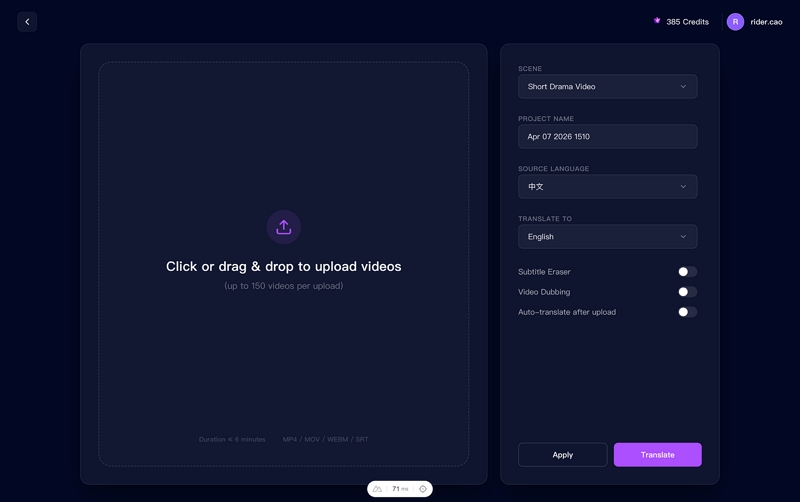
Set your source language (auto-detect is available) and choose a subtitle style, then click Translate. For drama content, Bold Drama is the most readable option across different backgrounds—48pt bold sans-serif holds up on both mobile and desktop. Mediaio processes the audio in 3–5 minutes.
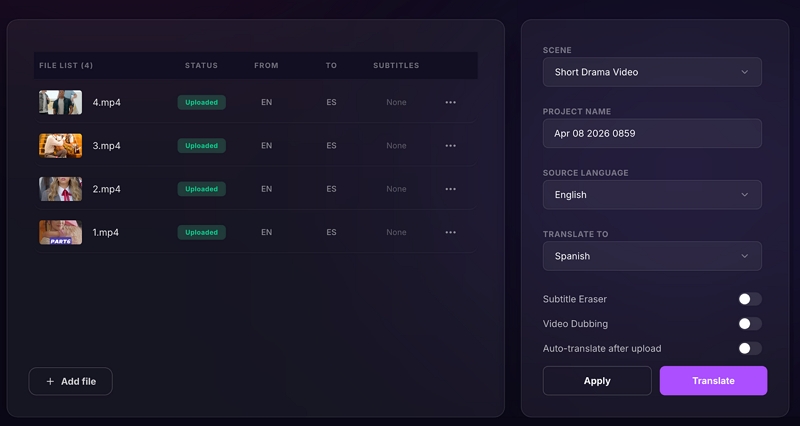
Mediaio highlights low-confidence words in the timeline—start your review there rather than reading every line. For drama content, prioritize three areas: emotional peaks (confessions, arguments, reveals), character names, and any multi-speaker moments where dialogue overlaps. To adjust timing, drag subtitle blocks on the timeline; to fix overlapping dialogue between two characters, position one speaker at the top of the frame and one at the bottom. Split or merge segments as needed.
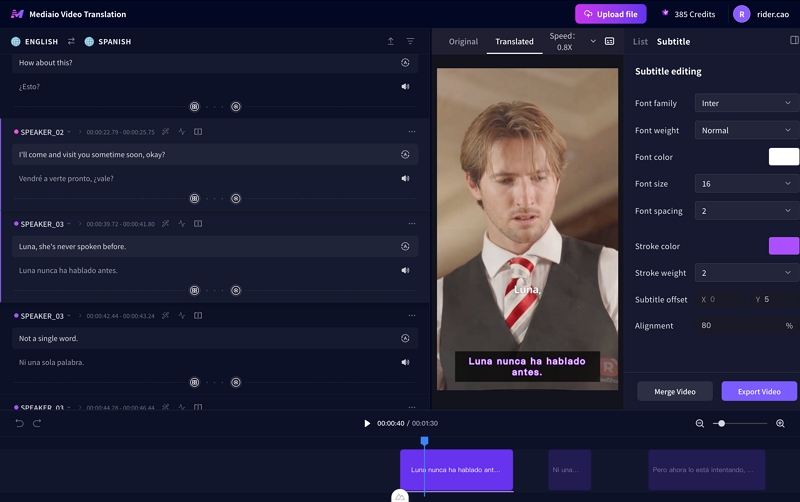
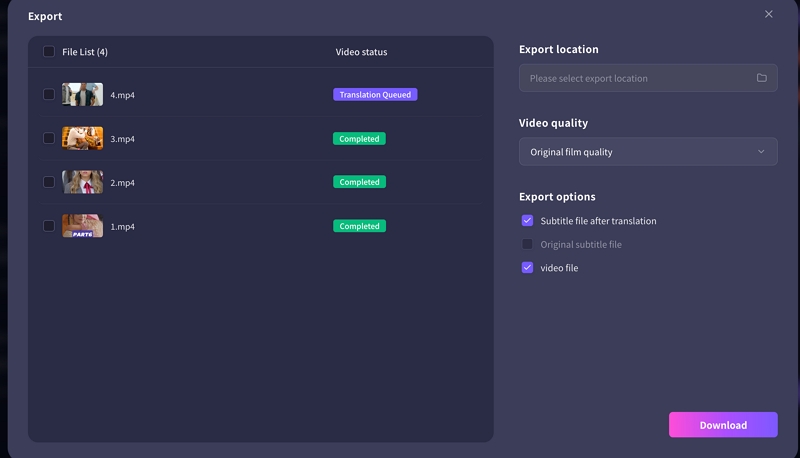
Export format depends on where you're publishing. For YouTube, download the SRT file and upload it via YouTube Studio → Subtitles → Add language → Upload file—this keeps subtitles as a separate, indexable track that viewers can toggle. For TikTok and Instagram Reels, export with burned-in subtitles, since neither platform supports external subtitle files. Before posting, watch the exported video on your phone: subtitle size and position that looks fine on a desktop often reads too small or covers facial expressions on mobile.
Pricing
- Free: 200 credits for free
- Pro: $35.95/mo
Method 2: Manual Subtitle Creation - Most Accurate
- Best for: Professional productions, critical accuracy
- Accuracy: 99%+
- Cost: Free-$50
- Time: 30-60 min
Manual subtitling gives you frame-by-frame control that no AI tool matches—necessary for archaic language, heavy accents, or content where a single mistranslation has real consequences.
A. Aegisub (Free, Open-source)
Aegisub is the industry standard for subtitle timing. It allows you to have frame-by-frame precision and also use advanced styling when it comes to fonts, colors, and positions.
Workflow: Import video > Type each subtitle line > Set start/end time manually > Style text (font, color, outline) > Export as SRT/ASS
B. Subtitle Edit (Free, Windows/Mac/Linux)
Subtitle Edit (free, Windows/Mac/Linux) adds waveform visualization so you can see dialogue peaks directly—useful for drama scenes with irregular pacing. Also includes spell check, grammar tools, and batch processing for faster turnaround on series.
Method 3: YouTube Auto-Captions - Free but Basic
- Best for: Testing, YouTube-only content
- Accuracy: 70-80%
- Cost: Free
- Time: Instant + editing
YouTube auto captions are completely free, but the disadvantage is that it is only available for content uploaded to the platform. You can’t reuse the captions on Instagram or TikTok.
Here’s how it works:
- Upload the video to YouTube and wait 5–30 minutes for auto-caption generation.
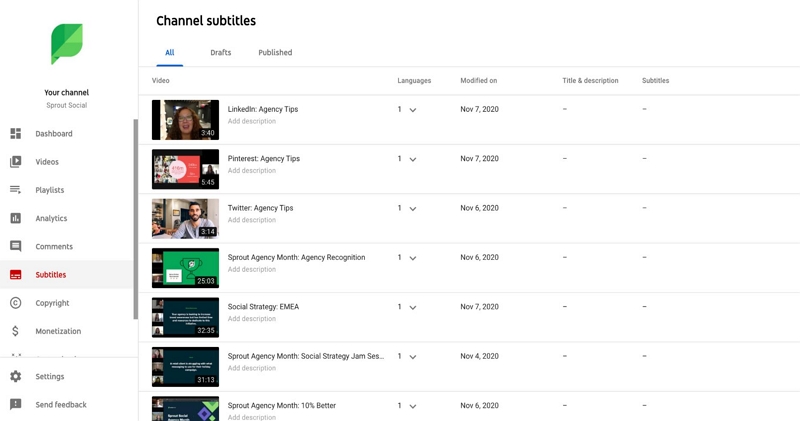
- Go to YouTube Studio → Subtitles and click into the auto-generated captions. Edit errors and adjust timing blocks.
- Download the SRT file to reuse on other platforms, or publish directly on YouTube.
Method 4: Hire Professional Subtitlers
- Best for: High-budget productions, licensed content
- Accuracy: 99%+
- Cost: $5-15/min of video
- Time: 1-5 days
Worth considering for theatrical releases, broadcast TV, legal or medical dramas, or productions with budgets over $5,000. Trusted platforms:
- Rev.com — $1.25/min, 99%+ accuracy, 24–48hr turnaround
- Fiverr — $15–50/video, variable quality, 24hr–1 week
- Upwork — $25–100/video, negotiable rates and timeline
- 3Play Media — professional service with accessibility compliance
Here is broadly how the process of hiring a professional to add subtitles to your video/content goes:
Step 1: Upload the video and script (if available), and specify any guidelines such as font and timing rules you might have.
Step 2: The freelancer will create the file and return with a first draft.
Step 3: Review the file and suggest revisions, if any. Once you approve the final product, they will deliver it in the form of an SRT or VTT file or burn it into the video if needed.
Troubleshooting the Six Most Common Problems
Problem 1: Subtitles Are Out of Sync Throughout the Video
Symptoms: text appears consistently before or after the spoken line; the offset is uniform across the whole video.
Fixes: Use the global shift function in your subtitle editor to move all subtitles forward or back by a set number of milliseconds at once. Check whether you trimmed or edited the video after generating subtitles—any edit to the timeline breaks timing and requires regeneration. Also verify frame rate match: subtitles created at 29.97fps drift when applied to a 30fps export.
Problem 2: Background Noise Causing AI to Generate Gibberish
Symptoms: music or ambient sounds appear as transcribed words; accuracy drops sharply during scenes with heavy background audio.
Fixes: Reduce background music volume in your edit before uploading—this is the single most effective fix and should always be the first step. For persistent problem sections, use audio cleanup tools (Descript Studio Sound, Adobe Enhance Speech) to isolate dialogue before processing. If a specific line still fails, type it manually rather than fighting the AI on difficult audio.
Problem 3: Character Names Appearing Inconsistently
Symptoms: "Sarah," "Sara," and "Sera" all appearing for the same character; inconsistent capitalization or romanization of non-English names.
Fixes: Use Find & Replace in your subtitle editor to standardize all instances at once. Add character names to your AI tool's custom dictionary before generating subtitles for a series. Keep a character name reference document open during every review session.
Problem 4: Subtitles Too Fast to Read in Action or Argument Scenes
Symptoms: viewers report in comments that they can't keep up; lines of 25+ words appearing on screen for under 2 seconds.
Fixes: Split long lines into two shorter cards timed to natural speech pauses. Condense the translation—cut filler words while preserving meaning. Target 17 characters per second as your ceiling, and check the math on any line that feels rushed.
Problem 5: Overlapping Dialogue Is Confusing
Symptoms: viewers can't tell who is speaking during argument scenes; a single centered subtitle line is used for two speakers simultaneously.
Fixes: Position Character A at the top of the frame and Character B at the bottom—viewers learn this convention quickly. Color-code by speaker with one consistent color per main character throughout the series. Add a name label on first appearance: [MAYA] at the start of the line.
Problem 6: Subtitles Covering the Actor's Face or Key Visuals
Symptoms: text sits over close-up facial expressions during emotional peaks; subtitles block on-screen text like signs or messages.
Fixes: Move the subtitle block to top placement for affected scenes only—most editors let you set position per subtitle card rather than globally. Reduce font size slightly for scenes where the actor fills the full frame. For on-screen text conflicts, shift the subtitle to whichever half of the frame the competing text doesn't occupy.
Common Questions
With an AI tool and a targeted review, typically 15–20 minutes: 5–10 minutes for AI processing, then 10 minutes checking emotional scenes, character names, and multi-speaker moments. Manual subtitling for the same clip takes 30–45 minutes. The hybrid method takes 20–30 minutes and provides the best balance between speed and quality for most drama creators.
Keep both formats where possible. Upload the SRT to YouTube as a separate subtitle track so viewers can toggle it and YouTube can index the text for search. For TikTok and Instagram Reels, burned-in subtitles are required because these platforms don't support external subtitle files. Export a burned-in version specifically for those platforms rather than trying to use a single file everywhere.
AI subtitle tools optimize timing for speech by trimming silence—which is correct for most content but wrong for drama, where pauses are part of the performance. Fix it manually: extend the end time of the previous subtitle so it holds during the pause, and delay the start of the next subtitle until the character actually begins speaking. It requires per-scene adjustment but makes a significant difference in how emotional scenes land.
CapCut's mobile app is the best free option for TikTok workflows—automatic captions with no clip length limit on the basic tier. YouTube Studio offers free auto-generated captions for uploaded videos, and you can export the SRT file to reuse on other platforms after editing. For full manual control at zero cost, Aegisub and Subtitle Edit are both professional-grade desktop editors, though they require more time investment than AI tools.
Conclusion
For most drama creators publishing regularly, the hybrid method gives the best return: Mediaio for a fast, accurate first draft, followed by a targeted review pass focused on emotional peaks, character names, and overlapping dialogue. YouTube auto-captions are worth using as a free starting point when testing new content, and manual tools like Aegisub are the right call when accuracy is genuinely non-negotiable.
The troubleshooting section covers the problems that will come up regardless of which method you choose—sync issues, noisy audio, speaker confusion. Bookmark it and come back when you hit them. Most have a fix that takes under five minutes once you know what to look for.