



If you're a creator publishing content on YouTube, reaching audiences who speak different languages isn't optional anymore, it's a growth strategy. This guide walks you through every practical method for translating your YouTube videos, from quick built-in tools to polished multi-language subtitle workflows, so you can choose what fits your production process.
Which Method Should You Use?
The right method depends on your content type, turnaround time, and how much accuracy matters for a given video. Here's a quick reference before diving into each option:
Method 1: YouTube Studio Auto-Translate
YouTube's built-in auto-translate is the fastest way to add subtitle tracks to your videos. It requires no external tools and takes about a minute to set up, but the output quality reflects that.
How to Set It Up
- Go to YouTube Studio → Subtitles and select your video.
- Click Add language and choose your target language.
- Select Auto-translate. YouTube generates the subtitle track automatically.
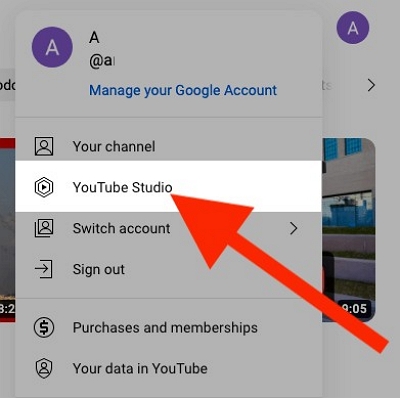
Once generated, you can edit individual lines inside YouTube Studio before publishing, which is worth doing for any line that sounds unnatural or mistranslates a key term.
What to Expect from the Output
Auto-translate works as a two-step pipeline: YouTube transcribes your audio first, then translates the transcript. Errors at step one compound into step two. If your video has a strong accent, fast speech, background noise, or technical terminology, the transcript will be rough—and the translation will be rougher.
For major languages like Spanish, French, German, and Japanese, results are usable for casual content. For niche topics, heavy jargon, or less-resourced languages, expect more errors. Idioms and cultural references almost never survive machine translation intact.
Best used for: low-stakes content where speed matters more than polish, or as a starting draft you plan to edit afterward.
Method 2: Mediaio Video Translator (Recommended for Creators)
For creators who want accurate, publishable subtitles without a manual technical workflow, Mediaio Video Translator handles transcription, translation, review, and export in one platform. It's the most practical option if you're translating videos regularly and don't want to manage subtitle files by hand.
Step-by-Step: Translating a Video with Mediaio
Go to the Mediaio Video Translator page and upload your video file. Supported formats include MP4, MOV, and AVI.
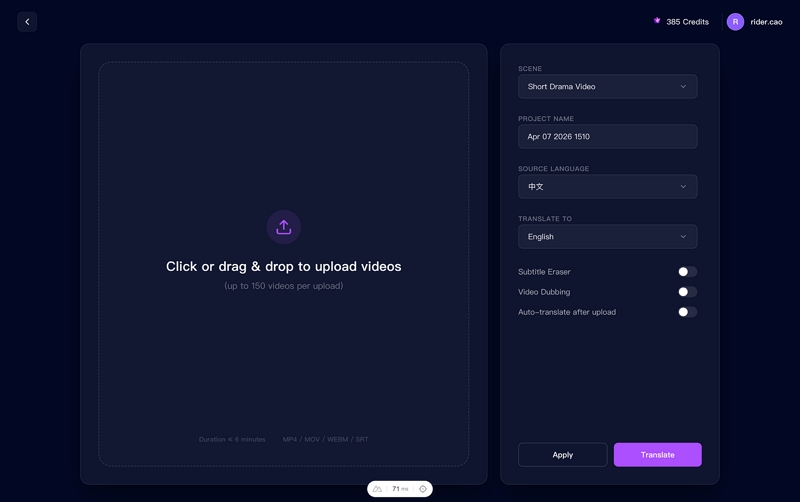
Enter a project name and set your target language. You can also enable optional features depending on your needs:
Voice dubbing: generate translated audio alongside the subtitles.
Subtitle removal: strip any hardcoded subtitles from the source video
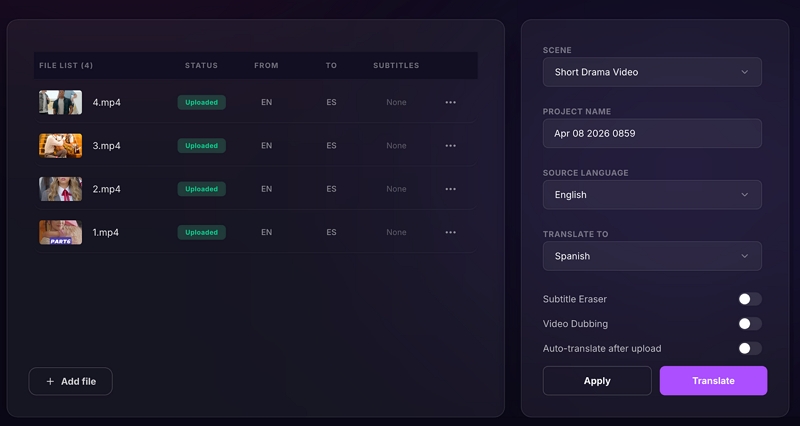
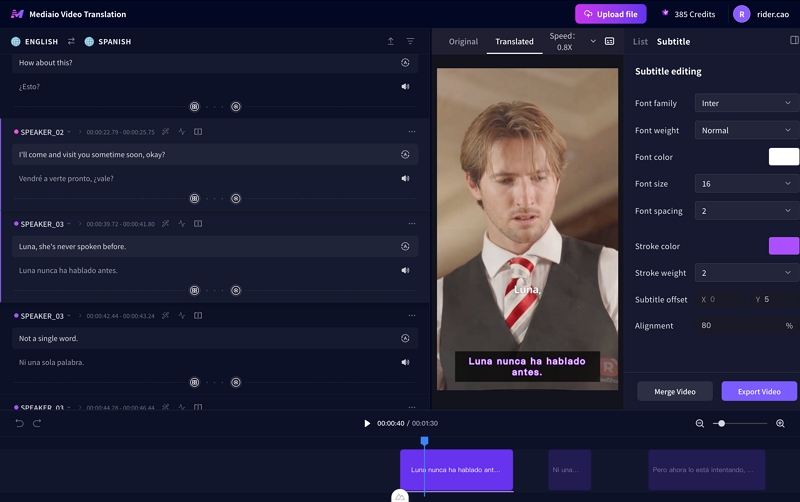
Once processing is complete, Mediaio opens an inline editing interface where you can review every subtitle line. This is where you catch the mistakes AI translation consistently makes: proper nouns, technical terms, and unnatural phrasing. For a 10-minute video, a review pass typically takes 10–15 minutes.
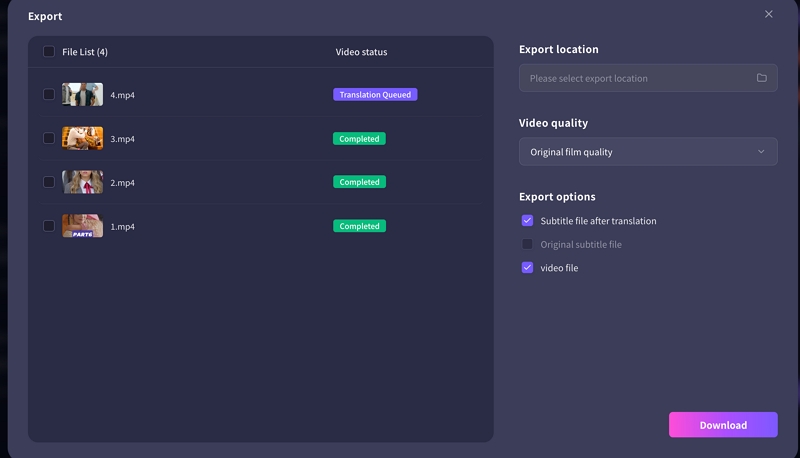
Click Download to export the translated video or subtitle file. For YouTube, download the .srt file and upload it via YouTube Studio → Subtitles → Add language → Upload file. This replaces the less accurate auto-generated captions with your reviewed translation, and signals to YouTube's algorithm that your video has complete caption data, which can improve search visibility across language markets.
Method 3: Manual Workflow — Whisper + DeepL
If you prefer full control and are comfortable with command-line tools, the open-source manual workflow gives you high-quality results at no cost. The tradeoff is setup time and more steps per video.
The Workflow
- Run OpenAI Whisper on your video to generate an .srt transcript. Whisper is available locally or via API and handles accents and technical speech significantly better than YouTube's auto-captioning.
- Correct any transcript errors before translating, fixing mistakes at the source saves time across every language you're targeting.
- Translate the .srt file using DeepL (best accuracy for European languages; free up to 500,000 characters/month) or Google Translate (broader language support, including many Asian and African languages).
- Review the output in Subtitle Edit or a similar editor that preserves timing codes during translation.
- Upload the corrected .srt file to YouTube Studio.
Common AI Translation Errors to Catch on Review
Whether you're using Mediaio, DeepL, or Google Translate, AI translation makes predictable mistakes. Knowing what to look for makes review faster:
- Proper nouns — names of people, brands, and places frequently get mistranslated or phonetically mangled
- Technical terminology — industry-specific terms often get translated literally rather than using the correct domain vocabulary
- Subtitle line breaks — long source sentences sometimes split awkwardly across cards, cutting mid-thought
- Formality and register — languages like Japanese, Korean, and German have formality levels that AI misjudges based on context
- Reading time — German and Spanish often produce significantly longer text than English for the same idea, causing subtitles to appear too briefly on screen
You May Also Like
Method 4: Professional Human Translation
For content where a mistranslation has real consequences, machine translation isn't sufficient regardless of which tool you use. Human translators handle nuance, cultural context, tone, and domain-specific terminology in ways that current AI consistently misses.
When to Use Human Translation
- Legal or compliance content — mistranslations create liability; you need a translator with legal specialization in the target language
- Marketing and brand content — taglines and wordplay require localization, not literal translation; a direct translation of a clever English slogan often lands flat or sounds odd in another language
- Educational and training material — technical concepts need to be pedagogically clear, not just literally accurate
- Medical or health information — inaccurate translation can cause real harm
How to Work with a Translator Efficiently
- Export a clean transcript from YouTube Studio or generate one with Whisper.
- Provide the translator with the transcript, the video topic, target audience, desired tone, and any terminology glossary relevant to your niche. Context reduces back-and-forth significantly.
- Receive the translated .srt and upload it to YouTube Studio.
Providing a transcript rather than just a YouTube link reduces cost, since translators charge per word rather than per hour of video. Platforms like ProZ, Gengo, and One Hour Translation connect you with vetted professionals by language pair and subject specialty.
Cost range: $0.10–$0.25 per word for major language pairs. A 10-minute video with ~1,500 words of dialogue costs approximately $150–$375. Specialized content or rare language pairs cost more.
How do you choose a good video translation team? After reading this guide to video localization services, you should have the answer.
Tips That Improve Results Across Every Method
Fix the transcript before you translate. Whether using AI or human translation, results are always better when the source transcript is clean. If your original captions are inaccurate, those errors carry through to every language you translate into. Correcting the source once is faster than correcting multiple target languages afterward.
Upload subtitle files instead of relying on auto-translate. When a reviewed subtitle file is uploaded to YouTube, even if it was originally generated by AI, it replaces the less accurate auto-generated captions and improves the viewing experience for everyone. It also makes the content indexable by YouTube's search algorithm across language markets, which auto-translate captions don't do as effectively.
Check subtitle reading speed after translation. Language pairs that have large differences in text length, such as English to German or English to Spanish, often result in subtitles that are too long to read comfortably within the available time. After translation, scan your .srt for cards that will flash by too quickly and split or shorten them as needed.
Consider voice dubbing for higher engagement. For audiences who prefer audio in their native language, AI voice dubbing can meaningfully improve watch time compared to subtitles alone, particularly on mobile. Platforms like Mediaio offer dubbing alongside subtitle generation. Carefully review the output, as timing issues are most likely to occur with fast speech.
Method Comparison
Frequently Asked Questions
Yes. YouTube indexes subtitle content as part of its search ranking signals. Uploading reviewed subtitle files in multiple languages can help your video appear in search results across different language markets without creating separate videos per language. Auto-generated captions are indexed too, but uploaded files are generally more accurate and therefore more useful to the algorithm.
Use Whisper to generate a transcript from the audio first, then translate the .srt file with DeepL or Google Translate. Mediaio Video Translator can also handle the entire process automatically, allowing users to upload a video and receive translated subtitles without dealing with intermediate files.
For European languages, DeepL's free tier is generally more accurate than Google Translate and handles natural phrasing better. Google Translate covers more languages overall, particularly across Asia, Africa, and South Asia. However, for content where accuracy is especially important, professional human translation remains the more reliable choice.
For your own videos, subtitle files can be downloaded directly from YouTube Studio. For other creators' videos, the command-line tool yt-dlp can download auto-generated captions in .vtt format, which can then be converted to .srt using a subtitle editor like Subtitle Edit.
For channels targeting non-English speaking audiences, AI voice dubbing can improve watch time and engagement compared to subtitles alone especially on mobile, where reading subtitles is less comfortable. The main limitations are occasional timing mismatches on fast speech and unnatural prosody in emotionally complex content. A review pass before publishing catches most issues.
Final Thoughts
For most creators, the practical starting point is Mediaio Video Translator or a similar AI-powered platform: It brings transcription, translation, review, and export into a single workflow, making it easy to create translated subtitles without dealing with technical setup or subtitle files. For content where accuracy is genuinely non-negotiable, layer in a human review or commission a professional translation. And for any content type, uploading your own subtitle files rather than relying on YouTube's auto-generated captions will give your viewers a better experience and your videos better search visibility across every language market you're targeting.