



Before we dive in, here's the one thing most guides won't tell you upfront: Sugoi Offline Translator cannot open video files. It only translates text. So if you want to use it for video translation, your workflow will always involve subtitle files (.srt, .ass, or .vtt) as the bridge between your video and Sugoi.
While that may seem restrictive at first, it covers a surprisingly wide range of real-world use cases. This guide shows you exactly how to build that workflow, whether you already have subtitles or need to generate them from scratch.
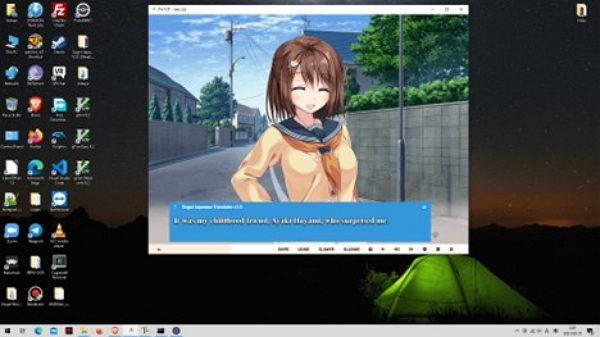
Part 1: What Sugoi Can (and Cannot) Do
Sugoi Offline Translator was originally built for translating Japanese visual novels and game scripts. It runs entirely on your local machine—no internet, no API keys, no usage limits.
What it does well:
- Translates Japanese text to English with consistent terminology
- Processes subtitle files (.srt, .ass, .vtt) without breaking timestamps
- Handles large files without cloud limits or per-character fees
- Keeps all your data 100% local—nothing leaves your machine
What it cannot do:
- Open or process .mp4, .mkv, .mov, or any video format
- Transcribe speech or recognize audio
- Generate subtitle timing from scratch
- Sync subtitles to video automatically
The practical implication: to use Sugoi on a video, you need a subtitle file first. If your video already has one (embedded or external), you can start translating right away. If it doesn't, you'll need to generate subtitles using a separate tool—typically Whisper AI—before Sugoi becomes useful.
Part 2: Prerequisites - What You Need BEFORE Using Sugoi
Scenario A: You already have subtitle files
If subtitle files in .srt, .ass, or .vtt format are already available, or can be extracted from the video, the translation process can begin immediately. This is the fastest path and where Sugoi genuinely shines.
Quick check: Many .mkv anime files contain embedded Japanese subtitle tracks. Run ffmpeg -i yourfile.mkv in a terminal to see all available tracks. If you see a subtitle stream, you can extract it directly.
Scenario B: Your video has no subtitles
You'll need to generate them first using automatic speech recognition (ASR). The best offline option is Whisper AI (free, runs locally, excellent Japanese accuracy). Cloud alternatives like Google Speech-to-Text are faster but require uploading your content.
Once you have a subtitle file from either path, the Sugoi workflow is identical.
Software you'll need
Part 3: Step-by-Step Process - Using Sugoi for Video Translation
Sugoi Offline Translator can absolutely be part of a video translation workflow, but only if you understand that Sugoi translates text, not audio or video. That means your entire process revolves around preparing, translating, and syncing subtitle files. Below is the complete, real world workflow for both scenarios: when you already have subtitles and when you need to generate them from scratch.
Method 1: Translating Existing Subtitle Files
This is the cleanest workflow. If you have a .srt or .ass file ready, the entire process takes about 10 minutes per episode.
Step 1: Extract or locate your subtitle file
If subtitles are embedded in the video (common with .mkv files): ffmpeg -i input.mkv -map 0:s:0 subtitles.srt
If you already have an external .srt file, skip this step.
Before doing anything else, make a backup copy. Sugoi's output is good but not perfect, you want to be able to revert to original timing and text if needed.
Step 2: Check file encoding
Open your .srt file in a text editor. Japanese subtitle files are sometimes encoded in Shift-JIS rather than UTF-8, which causes garbled output in Sugoi.
To check and convert encoding in Subtitle Edit: File → Auto Detect → Save As → UTF-8 (with BOM).
UTF-8 with BOM is recommended for Windows compatibility; plain UTF-8 works fine on Mac/Linux.
Step 3: Load the file into Sugoi
- Launch Sugoi Offline Translator
- Click Import File and select your .srt file
- Set source language: Japanese
- Set target language: English
- Enable Preserve timestamps to ensure Sugoi translates only the dialogue text while keeping all timing information unchanged.
Step 4: Choose your translation settings
- Translation engine: Sugoi V4 Model (most accurate, handles context better than older versions)
- Context window: Medium — a good balance between speed and coherent multi-line dialogue.
- Remove formatting tags: Enable only if your file contains karaoke tags or HTML styling. Leave it off for standard .srt files.
Step 5: Run the translation
Click Translate. Processing time is roughly 5–10 seconds per 100 lines on a mid-range CPU. Once complete, review the output in the preview pane before exporting. Look specifically for:
- Character names — Sugoi sometimes translates names literally. "田中" might appear as "rice paddy middle" instead of "Tanaka." A quick find-and-replace fixes this.
- Honorifics — Decide whether to keep "-san," "-kun," "-sama" or localize them. Sugoi preserves these by default.
- Idioms — Japanese idioms often don't translate directly. Sugoi will give you something grammatically correct but occasionally odd. These are worth a manual pass.
Even a 5-minute review dramatically improves readability.
Step 6: Export the translated file
Save as: videoname_EN.srt Encoding: UTF-8 with BOM.
Open the exported file in a text editor to spot-check a few lines before loading it into your video player.
Step 7: Preview with your video
Open your video in VLC. Go to Subtitle → Add Subtitle File and select your translated .srt. If timing feels off by a consistent amount (subtitles always a second late, for example), press H to delay or G to advance. For more precise adjustments, use Aegisub's timing editor.
Method 2: Full Offline Pipeline (No Subtitles)
If your video has no subtitles at all, this is your path. It combines Whisper AI for transcription, Sugoi for translation, and Aegisub for timing refinement—all running locally.
Step 1: Extract audio (optional)
Whisper can process video files directly, but extracting audio first gives you cleaner input for long files:
ffmpeg -i input.mp4 -vn -acodec pcm_s16le -ar 16000 audio.wav
16kHz WAV is Whisper's preferred input format.
Step 2: Generate subtitles with Whisper
whisper audio.wav --language Japanese --output_format srt --output_dir ./subtitles
Whisper produces well-timed .srt files and is particularly accurate with conversational Japanese. For a 30-minute video, expect processing to take 5–15 minutes depending on your hardware.
Review the generated .srt before translation. Whisper occasionally mishears proper nouns or splits sentences at awkward points, a quick read-through helps catch these early.
Step 3: Translate with Sugoi
Follow Method 1, Steps 2–6. The process is identical once you have your .srt file.
Step 4: Refine timing in Aegisub
Whisper's timing is usually good, but it can drift slightly in fast-paced dialogue. Aegisub gives you frame-accurate control:
- Open Aegisub and load both your video and the translated .srt
- Use Ctrl+1 to play the current subtitle line against the video
- Use Shift+Ctrl+Left/Right to extend or shorten duration
- Aim for 1–2 lines per subtitle card and 1.5–6 seconds of display time
For most content, you'll spend 15–30 minutes on timing refinement for a standard episode.
Step 5: Embed subtitles (optional)
Soft subtitles (toggleable, recommended):
ffmpeg -i input.mp4 -i translated.srt -c copy -c:s mov_text output.mp4
Hard subtitles (burned in permanently, useful for platforms without subtitle support):
ffmpeg -i input.mp4 -vf "subtitles=translated.srt" output_burned.mp4
Alternative Method: Translate Video Directly with Mediaio
If you prefer a faster solution without handling subtitle files manually, an AI video translator like Mediaio Video Translator can translate video content automatically. It performs speech recognition, translation, and subtitle generation in one workflow.
This approach is especially useful if your video has no existing subtitles or if you want to generate translated dubbing and captions at the same time.
Open Mediaio Video Translator and upload your video file. You can drag and drop the video or select it from your device.
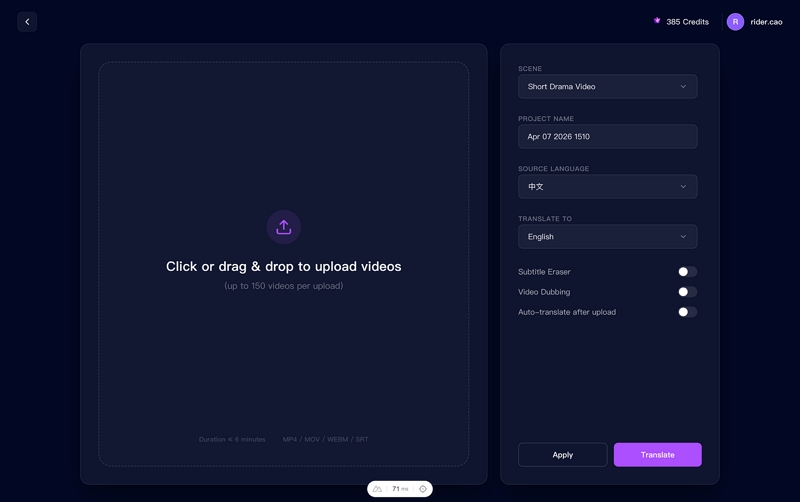
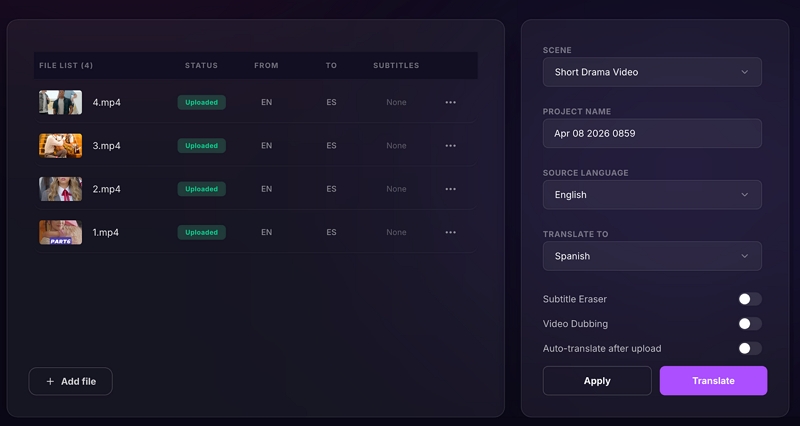
After the upload finishes, configure the translation project. You can enter a project name and customize the translation options.
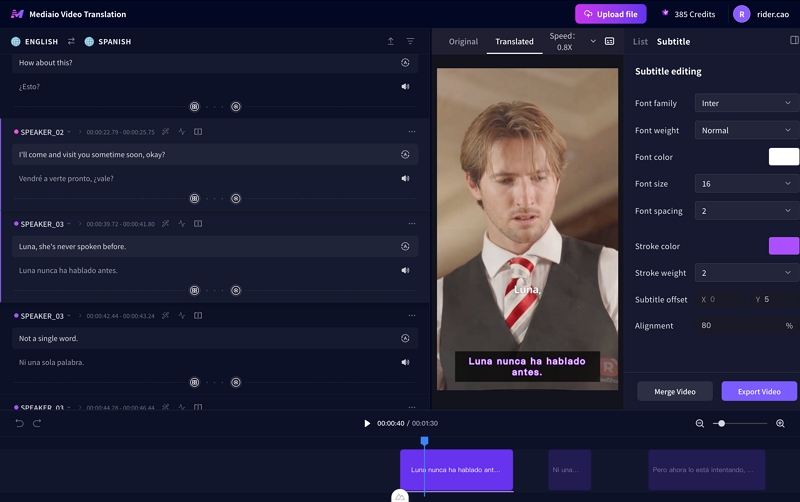
Once the translation is complete, Mediaio opens a preview interface where you can review the translated subtitles and AI-generated dubbing.
After reviewing the translation, click Download to export the translated video.
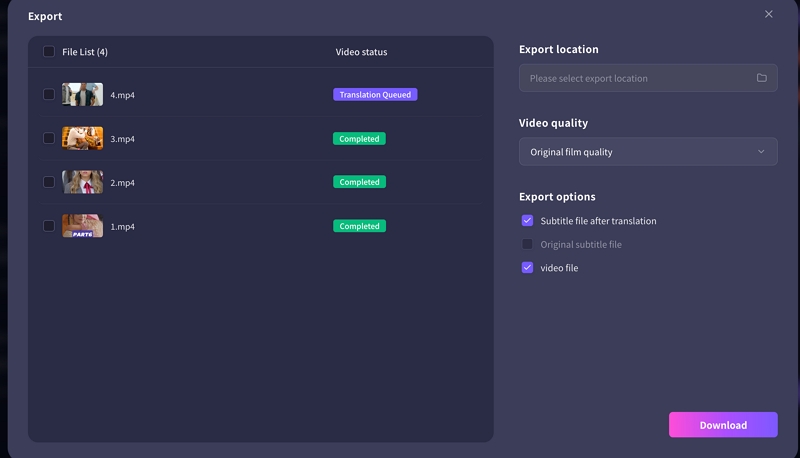
The exported video can be uploaded directly to platforms such as YouTube, Vimeo, online courses, or internal training systems.
Part 4: Scenario-Based Recommendation
Personal anime collection (you have subtitle files)
Best tool - Sugoi: This is Sugoi's ideal use case. Most .mkv anime releases include Japanese subtitle tracks. Extract, translate, watch. You get complete privacy, no upload required, and acceptable accuracy (70–80%) for casual viewing. Total time per episode: ~10 minutes once your workflow is set up.
YouTube educational videos
Best tool: Browser extension, not Sugoi For YouTube, using Sugoi requires downloading the video, extracting audio, running ASR, then translating, all before you can watch a single minute. Browser extensions like Immersive Translate or Language Reactor generate bilingual subtitles in real time as you watch. They're purpose-built for this use case and far more efficient.
Confidential business content (internal training, NDA material)
Best tool: Sugoi + Whisper offline stack. When content can't leave your organization's control, the fully offline pipeline (Whisper → Sugoi → Aegisub → FFmpeg) ensures zero data exposure. Every step runs locally. No cloud API calls, no external servers, no logging risk. The accuracy trade-off is real: cloud services like DeepL typically achieve 85–90% accuracy versus Sugoi's 70–75%. But for content where privacy is non-negotiable, that gap is an acceptable cost. Manual review can close much of it.
Batch processing (50+ videos)
Best tool: Automated pipeline or dedicated batch tool. Sugoi is not built for high-volume automation. Running it manually on 50+ videos means extracting subtitles, translating, and reviewing each file individually—which doesn't scale. If you need batch translation, look for tools with built-in pipeline automation or scripting support that can chain ASR → translation → export without manual intervention per file.
Common Mistakes and How to Avoid Them
Not backing up the original subtitle file. Once you overwrite it, you lose your original timing. Always keep a copy.
Skipping the encoding check. Shift-JIS encoded files look fine until Sugoi outputs gibberish. Check encoding before you start.
Expecting 100% accuracy. Sugoi is strong on formal Japanese but weaker on slang, regional dialects, and dense technical language. Build in time for a review pass.
Forgetting to enable "Preserve timestamps." Without this, Sugoi may reformat or strip timing codes from your .srt file.
Running Whisper on compressed audio. If you're extracting audio for Whisper, use WAV rather than MP3. Compressed audio degrades transcription accuracy, especially for quiet speech.
Conclusion
Sugoi Offline Translator is not a point-and-click video translation tool—and it was never meant to be. But paired with Whisper for transcription and standard subtitle tools for timing, it becomes a genuinely capable, fully private translation pipeline that costs nothing and sends nothing to the cloud.
The workflow takes some initial setup, but once you have it running, translating a 25-minute episode takes about 15–20 minutes total, most of which is unattended processing time. If privacy matters to you, or you're working with content you can't upload to cloud services, this stack is hard to beat.