



In most cases, the answer is no. However, the right choice depends on the specific task and requirements.
Loom supports transcription in 50+ languages and offers viewer-side caption translation during playback. What it doesn't support is exportable translated subtitles, AI dubbing, or any way to produce a localized version of your video for publishing. If you need a Spanish or German version of your Loom video that viewers can watch without toggling settings, you'll need to take the work outside of Loom.
This guide explains exactly what Loom does and doesn't do, why the distinction matters, and what a practical localization workflow actually looks like.
Part 1. What Loom Actually Supports
Transcription in 50+ languages
Loom's AI automatically transcribes spoken audio into text in the same language as the video. Record in French, get a French transcript. Record in Japanese, get a Japanese transcript. This works well for accessibility and searchability within Loom, viewers can read along, search the transcript, or use it for notes.
This is same-language transcription, not translation. The transcript doesn't cross language boundaries.
Viewer-side caption translation
Viewers watching a Loom video can enable machine-translated captions during playback. The translation happens in real time on their end, similar to how YouTube's auto-translate works for viewers.
This is useful for casual comprehension across language barriers. But it has hard limits for anyone trying to produce professional localized content:
- The translated captions are not editable. If a technical term gets mistranslated, you can't fix it.
- The translated captions are not exportable. There's no way to download an SRT or VTT file of the translated text.
- The translation only exists during that viewer's playback session. You can't build a workflow around it.
What this means in practice
If your goal is "I want international viewers to be able to follow this video," Loom's viewer-side translation covers the basics. If your goal is "I need to publish a properly subtitled or dubbed version of this video for a specific language market," Loom doesn't have the tools to do that, and you'll need to handle the translation work externally.
Part 2. The Core Gap: What Loom Can't Do
Understanding where Loom stops is the most useful part of this guide for anyone who searched "can Loom translate a video."
No exportable translated subtitles. You can't download a translated .srt or .vtt file from Loom. This matters if you want to upload subtitles to YouTube, an LMS, or any other platform that accepts subtitle files.
No AI dubbing or voice synthesis. Loom doesn't generate alternate-language audio tracks. There's no way to produce a version of your video where the narration is in another language.
No editable translation output. Because translated captions only exist viewer-side during playback, you can't review them, correct errors, or run them through a QA process before they reach your audience.
Metadata loss on video download. If you download a Loom video to run it through external translation tools, the exported MP4 strips the transcript, timestamps, speaker labels, and chapter markers that Loom generated. You're starting over with a flat video file.
Part 3. Building a Localization Workflow Outside Loom
Since Loom handles the recording well but not the translation, most teams end up with a hybrid approach: record in Loom, localize elsewhere.
Step 1: Get a clean, exportable transcript
The foundation of any good localization workflow is an accurate source transcript with timestamps intact. You have a few options:
From Loom directly: Loom's transcript panel lets you copy the text, though the format isn't always clean for subtitle workflows. For simple content, this may be enough to paste into a translation tool.
Using Whisper AI: Download your Loom video and run it through OpenAI's Whisper for transcription. Whisper produces well-formatted .srt files with accurate timestamps, handles accented speech well, and is free to run locally.
whisper loom_video.mp4 --language en --output_format srt
Using a transcription service: For longer or more complex content with multiple speakers, technical terminology, or fast-paced conversations, professional transcription services often deliver more accurate transcripts and reduce the amount of editing needed later.
Step 2: Translate the transcript
With a clean .srt or text file, translation is straightforward.
DeepL is the strongest option for European languages (French, German, Spanish, Italian, Portuguese, Dutch). The free tier handles up to 500,000 characters per month. For subtitle files specifically, DeepL's document translation feature preserves the .srt formatting so timestamps stay intact after translation.
Google Translate covers a wider range of languages, including many Asian and African languages where DeepL has no support. Quality is more variable than DeepL but has improved significantly and is often good enough for general content.
Human translation is the right call for compliance-sensitive content, legal material, medical information, or anything where a mistranslation has real consequences. Machine translation handles general language well but misses domain-specific terminology, regulated phrasing, and cultural nuance that a professional translator catches.
Step 3: Review before publishing
AI translation makes consistent, predictable mistakes worth checking for:
- Product and brand names sometimes get translated literally or mangled
- Technical abbreviations and acronyms may be translated when they should be kept in the original form
- Formality levels in languages like Japanese, Korean, and German need to match your audience and content type
- Idioms frequently produce literal translations that sound unnatural to native speakers
A 15–20 minute review by someone familiar with the target language catches most of these. For high-stakes content, a native speaker review is worth the additional time.
Step 4: Export and publish
Once you have a reviewed, translated .srt file, you can upload it wherever you need:
- YouTube: YouTube Studio → Subtitles → Add language → Upload file
- Vimeo: Video settings → Distribution → Subtitles
- LMS platforms: Most support .srt or .vtt upload in course settings
- Internal portals: Typically embed the subtitle file alongside the video file
Part 4. A Faster Way to Translate Loom Videos Automatically
If you don't want to manually extract transcripts, translate text, and rebuild subtitles, an AI video translator can simplify the entire workflow. Tools like Mediaio Video Translator allow you to upload a video and automatically generate translated subtitles or dubbed audio in one process.
This approach works especially well for marketing videos, tutorials, product demos, and training content that needs to be localized quickly.
First download your Loom recording as an MP4 file, then upload the video to Mediaio Video Translator. You can drag and drop the file or select it directly from your device.
Mediaio supports common formats such as MP4, MOV, and AVI, making it easy to process Loom recordings.
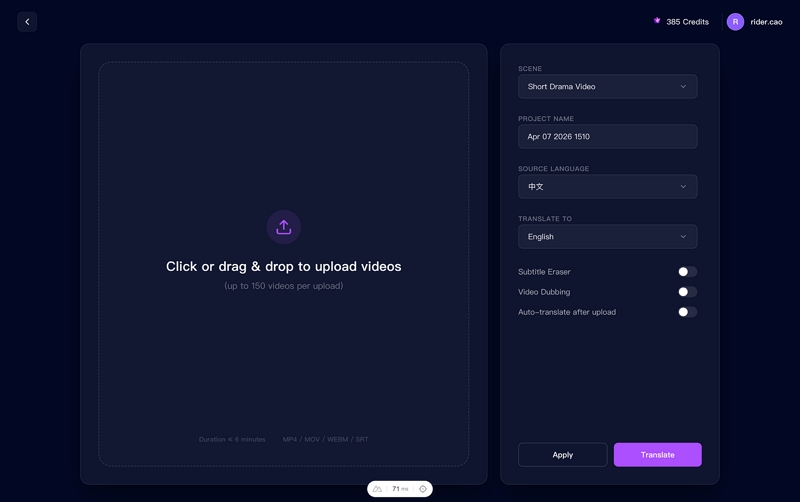
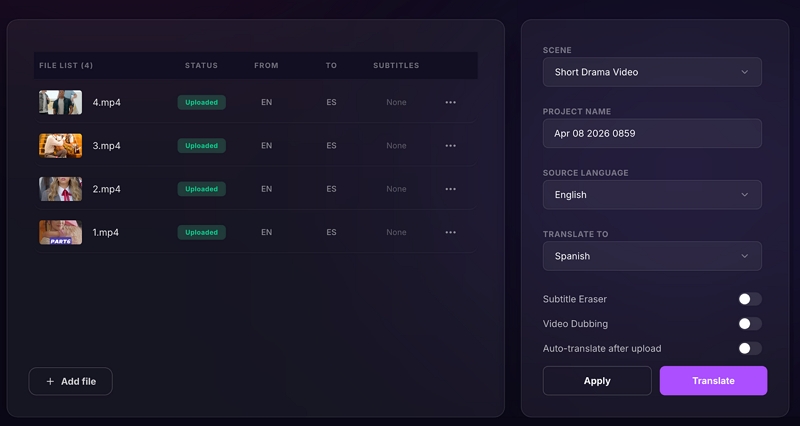
After the file uploads successfully, configure the translation project. You can enter a project name, choose whether to generate AI voice dubbing, and enable subtitle removal if the original captions need to be erased.
Once the settings are configured, start the translation process.
When translation is complete, Mediaio opens a review interface where you can preview the results. This allows you to check translated subtitles, preview AI-generated dubbing, and confirm that the translation reads naturally.
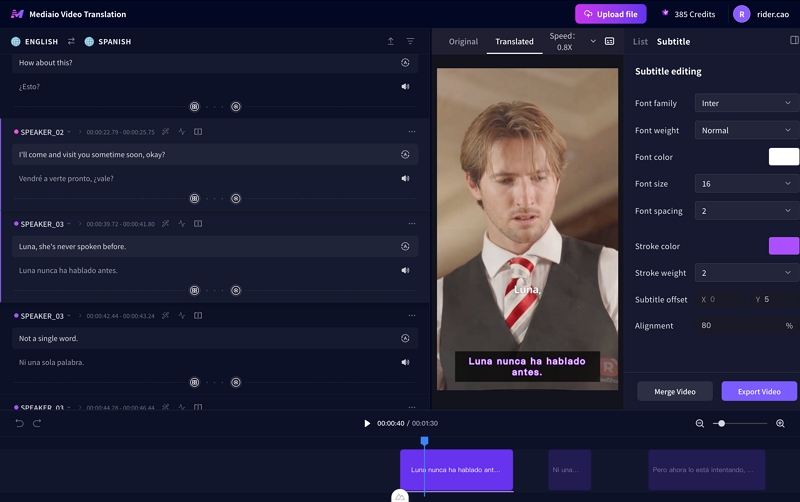
After reviewing the translation, click Download to export the final video. Mediaio provides several export options such as selecting the output video format, enabling video compression, and exporting subtitles if needed.
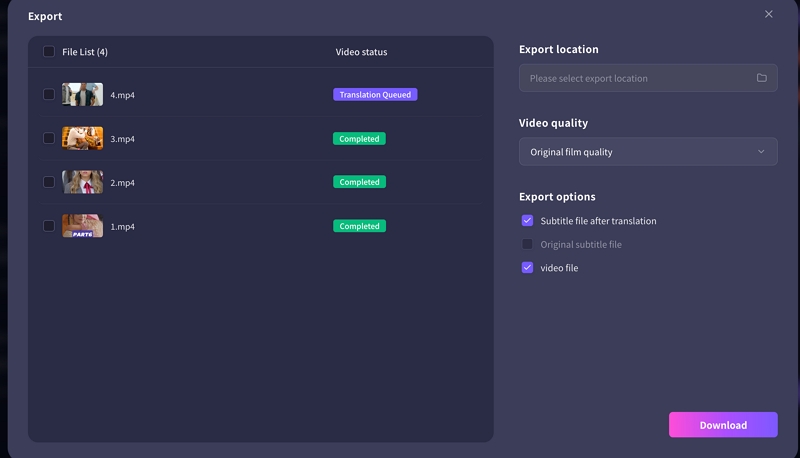
Once exported, the translated video can be uploaded to platforms such as YouTube, Vimeo, learning platforms, or internal company portals.
Part 5. Scenario-Based Recommendations
Internal training and compliance content
For regulated industries—healthcare, finance, legal, HR—subtitle accuracy is non-negotiable. Machine translation alone isn't sufficient. The right workflow is: Loom recording → clean transcript → human or reviewed AI translation → subtitle file uploaded to your LMS.
Subtitles are preferable to dubbing here because they preserve exact phrasing, allow legal and compliance review of the translated text, and don't introduce the interpretation risk that comes with AI-generated voiceover.
Sales demos and marketing videos
For content where voice and tone affect how the product is perceived, dubbing often outperforms subtitles—especially in markets like Japan, France, Germany, and LATAM where localized audio is the norm for professional content.
The workflow: Loom recording → clean transcript → professional translation → AI dubbing engine (such as ElevenLabs, HeyGen, or Descript) → review for terminology and brand voice → publish.
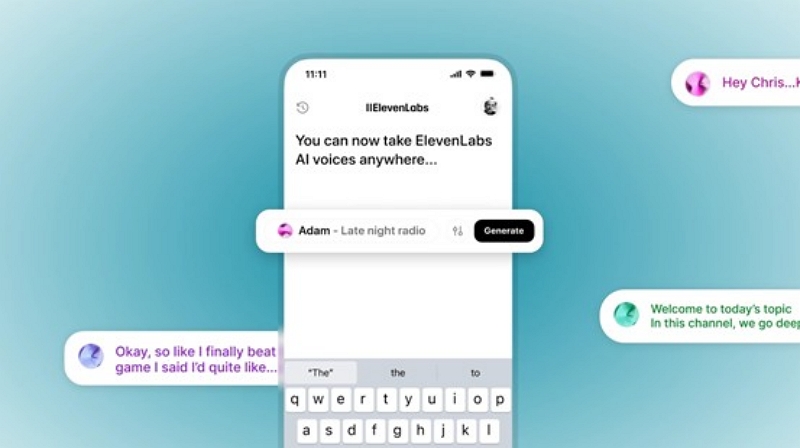
AI dubbing tools have improved substantially in recent years. For most use cases, the output is natural enough for sales and marketing content without requiring a professional voiceover artist for every language.
Educational content
For lectures, courses, and explainer videos, subtitles tend to work better than dubbing. Students benefit from being able to read ahead, pause on complex terms, and review exact phrasing, which subtitles support and dubbing doesn't.
An added benefit: the translated transcript itself becomes useful as a study resource. Distribute it alongside the video for students who want to annotate or review in their native language.
Customer onboarding
A hybrid approach often makes sense here: subtitle the entire video for full coverage, and add dubbed audio only for the most critical walkthrough segments where hearing instructions improves comprehension. This controls dubbing costs while preserving clarity where it matters most.
Part 5. Quality Checklist Before Publishing Localized Content
Transcript accuracy first. Every error in the source transcript becomes an error in the translation. Clean up filler words, false starts, and transcription mistakes before translating.
Terminology consistency. Build a glossary of approved translations for product names, feature labels, and industry terms in each target language. Apply it consistently across all translated content, inconsistent terminology confuses users and undermines credibility.
Subtitle timing and length. After translation, check that subtitle cards aren't too long to read in the allotted time. Languages like German and Spanish typically require more words than English to express the same idea, which can cause timing problems in translated subtitles.
Native speaker check for important content. AI translation handles general language well, but a native speaker catches awkward phrasing, cultural missteps, and terminology errors that automated tools miss. For anything customer-facing or compliance-related, this review is worth building into the process.
Accessibility. Check subtitle contrast, font size, and positioning against your video content. Subtitles that appear over text or UI elements become unreadable.
Frequently Asked Questions
No. Loom doesn't support AI dubbing or voice synthesis. Producing a dubbed version requires exporting the transcript, translating it, and running it through an external dubbing tool.
No. The viewer-side translation exists only during playback and isn't accessible for download or editing. To get an exportable translated subtitle file, you need to translate the source transcript externally.
No. Exported MP4 files don't include the transcript, speaker labels, or chapter markers. If you need this data, copy the transcript from Loom's transcript panel before downloading, or regenerate it using Whisper on the downloaded file.
For casual comprehension, often yes. For published content, compliance-sensitive material, or anything customer-facing, no—because you can't review, edit, or correct the output before it reaches viewers.
For most content: copy the Loom transcript, translate with DeepL or Google Translate, do a quick review pass, format as .srt, and upload where needed. For longer or more technical videos, Whisper transcription produces cleaner source material than Loom's copy-paste output.
With some work, yes. Copy the Loom transcript text, format it as an .srt file with timestamps, translate it, and upload it to YouTube Studio. The Loom transcript doesn't export directly as .srt, so you'll need to either format it manually or run the downloaded video through Whisper to get a properly timed subtitle file.