



Instagram's audience is global, but most creators publish in one language. Adding translated subtitles or captions to your Reels and Stories is one of the more practical ways to expand reach, and the tools available in 2026 make it significantly faster than it used to be.
This guide covers every method available: Instagram's built-in caption and translation features, AI-powered tools including Mediaio Video Translator, and manual workflows for when accuracy matters most. Start with the section that matches your situation.
What Instagram's Native Tools Can and Can't Do
Before choosing a method, it helps to know exactly where Instagram's built-in tools stop, because the gap between what creators expect and what's actually possible is a common source of confusion.
Instagram's built-in tools let you:
- Auto-generate captions for Reels and Stories in the video's source language
- Translate post captions (the text description below a video) into a viewer's device language
- Let viewers enable auto-generated captions across all videos they watch
What Instagram's built-in tools don't do:
- Translate spoken audio or generate published subtitles in another language, you can't post a Reel with Spanish subtitles using only Instagram's tools
- Dub or replace audio in another language
- Export subtitle files for use elsewhere
For published multilingual subtitles or dubbed audio, you'll need a third-party tool or a manual workflow. Both are covered below.
Method 1: Instagram's Built-In Caption Features
Instagram's native captions are the right starting point for any creator. They're free, fast, and cover the most common use case: making your content accessible to viewers who watch without sound or who benefit from on-screen text in your source language.
Adding Auto-Captions to Reels
- Record or upload your Reel in Instagram's editor.
- Tap the sticker icon at the top right of the screen.
- Select Captions — Instagram will transcribe your audio automatically.
- Review the generated transcript and correct any errors. Names, technical terms, and fast speech are the most common problem areas.
- Adjust font style, size, and color to match your visual style.
- Before posting, go to Advanced Settings and ensure Show Captions is toggled on.
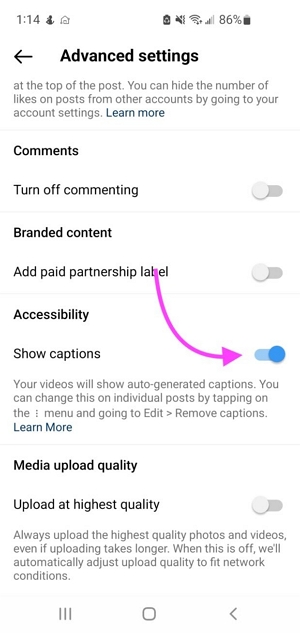
Instagram's auto-captions handle clear speech in quiet environments well. They struggle with accents, background noise, overlapping speech, and industry-specific terminology. A 2-minute read-through before posting catches most errors.
Adding Captions to Stories
The process mirrors Reels:
- Swipe right to open the Stories camera, or select an existing video from your gallery.
- Tap the sticker icon and select Captions.
- Instagram transcribes the audio automatically.
- Customize font, size, color, and position — place captions where they don't cover important visual content.
- Post when satisfied.
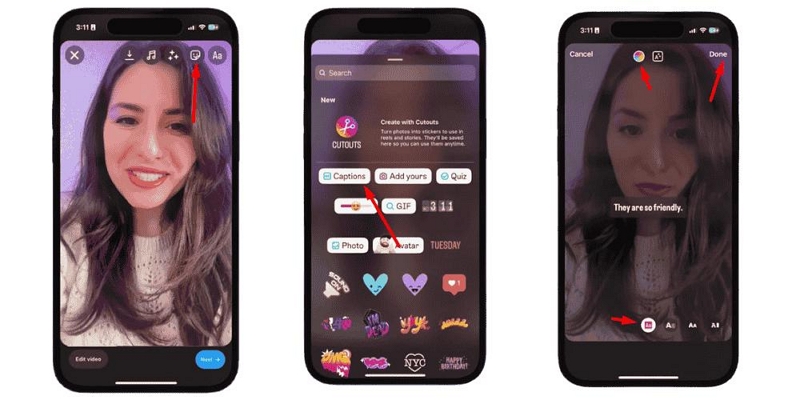
Stories captions work best for videos under 60 seconds with clear, direct speech. For longer or more complex content, plan for a manual review pass.
Enabling Captions as a Viewer
If you want captions on by default across all videos you watch:
- Tap your profile icon, then the three-line menu at the top right.
- Go to Settings → Accessibility → Captions.
- Toggle on Auto-Generated Captions.
For individual Reels: tap the three dots on any Reel and select Manage Captions.
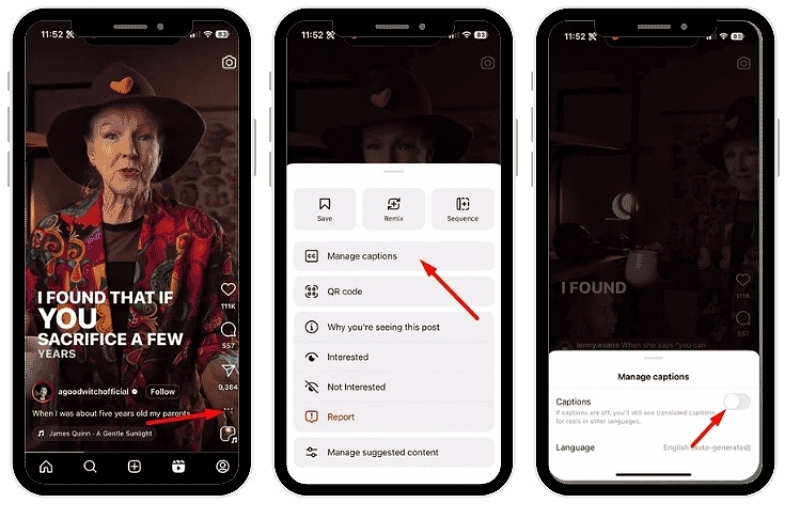
Important limitation: Instagram's viewer-side caption translation translates the text captions into your device language, it doesn't translate the audio or generate new captions in another language. If a creator hasn't added captions, you won't see them regardless of your settings.
Method 2: Mediaio Video Translator (Recommended for Multilingual Publishing)
If you want to publish a Reel with subtitles in Spanish, French, Japanese, or any language other than your source language, you need to work outside Instagram's native tools. Mediaio Video Translator brings transcription, translation, review, and export into a single workflow, making it a convenient choice for creators who regularly publish content in multiple languages.
Step-by-Step: Translating an Instagram Video with Mediaio
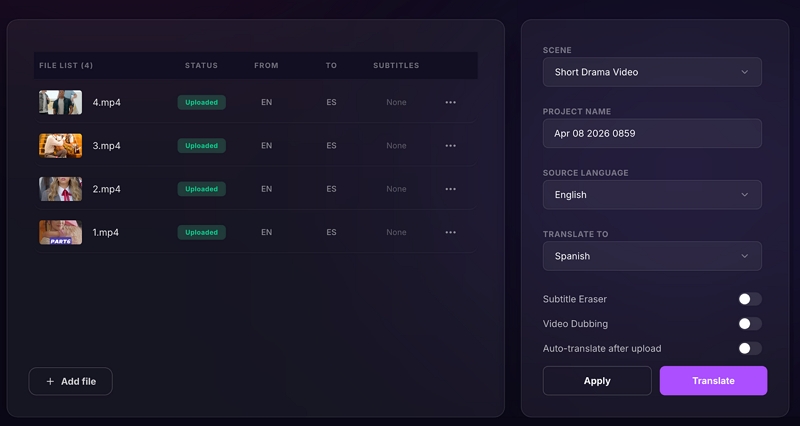
Go to the Mediaio Video Translator page and upload your video file. Use the original file before uploading to Instagram—working from the source preserves the best quality. Supported formats include MP4, MOV, and AVI.
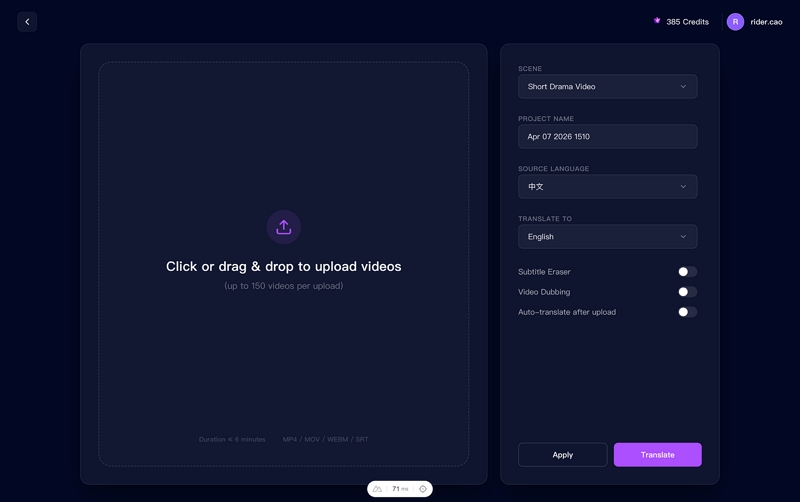
Enter a project name and choose your target language. Optional features available at this stage:
Voice dubbing: generate translated audio to replace the original, useful for narrative or entertainment content where reading subtitles on a phone is less comfortable.
Subtitle removal: strip any hardcoded subtitles from the source video before processing
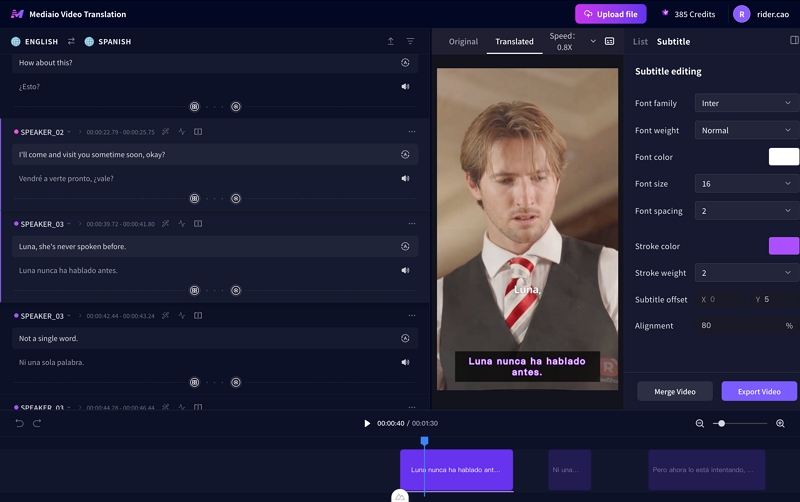
Once processing is complete, Mediaio opens an inline editing interface where you can review every subtitle line. For Instagram content, pay particular attention to subtitle line length—aim for no more than 35 characters per line so text is readable on a phone screen without pausing. Also check that proper nouns and any idiomatic expressions have translated naturally rather than literally.
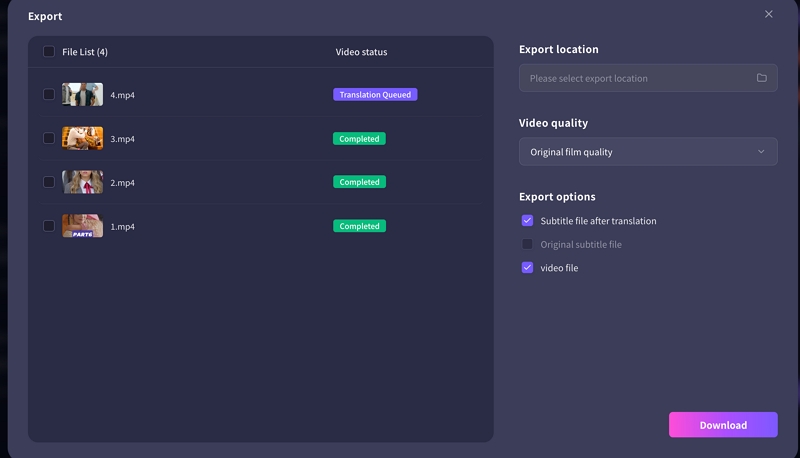
Click Download to export the translated video with burned-in subtitles. Since Instagram doesn't support external subtitle file uploads, the burned-in version is what you'll post. Before uploading, watch the exported video on your phone to verify subtitle size, position, and readability—what looks fine on a desktop can be too small or poorly positioned on mobile. Upload the final video directly to Instagram as a Reel.
Method 3: Other AI Tools for Specific Workflows
Depending on your existing setup, other tools may fit better for certain scenarios:
CapCut works well for short Reels where you're already editing in the app. Import your video, use Auto Captions to generate the source language transcript, review it, then use the Translate function to convert to your target language. Export with burned-in subtitles and upload to Instagram. The full process takes 10–15 minutes for a short Reel. Note that full translation features require a paid subscription after a 7-day free trial.
Subtitle Edit + DeepL (both free) gives you more control and higher translation quality for European languages, but involves more manual steps: generate the transcript in Subtitle Edit, export as SRT, translate via DeepL, then burn subtitles into your video using CapCut or DaVinci Resolve before uploading. Best suited to creators comfortable with desktop tools who need maximum accuracy at no cost.
Subtitles vs. Dubbing: Which Should You Use?
For Instagram specifically, the choice matters more than on other platforms, phone screens make reading subtitles less comfortable than on a desktop, and short-form content moves quickly.
Practical recommendation: Start with subtitles when expanding into a new language audience. Move to dubbing once you've confirmed strong engagement or revenue potential in that specific market.
Method 4: Manual Translation for High-Stakes Content
When translating content that carries legal, educational, or health-related implications, even small errors can have meaningful consequences. In these cases, professional human translation is generally recommended. AI tools produce a usable first draft; human translators catch nuance, cultural context, and domain-specific terminology that AI consistently misses.
The Manual Workflow
- Generate a source transcript using Instagram's auto-captions or Whisper AI (free, high accuracy).
- Send the transcript to a professional translator with context: the video topic, target audience, desired tone, and any terminology glossary relevant to your niche. Context reduces back-and-forth significantly.
- Review the translated SRT file for timing. Translated text is often longer or shorter than the original, which can cause timing mismatches—particularly with language pairs like English to German or English to Japanese.
- Burn subtitles into your video using CapCut, DaVinci Resolve, or any video editor that accepts SRT files.
- Upload the subtitled video to Instagram.
Where to find translators: ProZ and Gengo connect you with professional translators by language pair and subject specialty. For recurring work in a specific language, building a relationship with one translator who knows your content saves significant briefing time on each project.
Cost reference: Professional translation typically runs $0.10–$0.25 per word for major language pairs. A 60-second Instagram video with roughly 150 words of dialogue would cost $15–$38 to translate professionally.
Subtitle Best Practices for Instagram
Keep lines short and readable. Mobile screens are small. Aim for no more than two lines of text per subtitle card, and keep each line under 35 characters where possible. Viewers should be able to read each subtitle in 1–2 seconds without pausing.
Position captions to avoid UI overlap. Instagram overlays elements such as profile details and like, comment, and share buttons on top of Reels. To keep subtitles visible, position them slightly above the bottom of the frame rather than along the lower edge.
Check cultural context, not just translation accuracy. A technically correct translation can still land badly if it ignores regional idiom. Latin American Spanish differs meaningfully from Castilian Spanish, "vale" is natural in Spain but sounds foreign in Mexico. If you're targeting a specific regional market, verify with a native speaker from that region.
Optimize for sound-off viewing. A significant portion of Instagram users scroll with audio off. Subtitles aren't just a translation tool, they're an engagement tool for any language. Consider adding captions to all your videos, not just translated versions.
Test on your phone before posting. Watch the subtitled video on an actual phone before publishing. What looks fine in a desktop editor can be too small, too fast, or poorly positioned on mobile.
Common Mistakes That Hurt Translation Quality
Skipping the transcript review. Auto-captions are a first draft, not a final product. Proper nouns, brand names, numbers, and technical terms are where errors concentrate. A 2-minute review pass prevents mistakes from reaching your audience—and from being baked into every language you translate into.
Translating without context. Handing a transcript to a translation tool without explaining what the video is about produces generic output. Even a single sentence of context—"this is a 60-second tutorial for beginner home cooks"—improves machine translation results noticeably.
Assuming one translation covers all markets. Spanish covers 20+ countries with meaningful linguistic and cultural variation. Portuguese covers both Brazil and Portugal. For broad reach within a language, use neutral or standard variants. For specific markets, localize—and ideally have a native speaker from that region review it.
Ignoring text density on screen. If your video has a lot of on-screen graphics or text, ensure subtitles are positioned where they don't create visual clutter. Subtitles should complement the visual content, not compete with it.
FAQ
Instagram can auto-translate post captions (the text description below a video) into a viewer's device language when they tap "See Translation." It cannot automatically translate spoken audio or generate published subtitles in another language—that requires an external tool like Mediaio Video Translator or CapCut.
Upload your video to Mediaio Video Translator, select your target language, review the generated translation, and export with burned-in subtitles. The full process takes 10–15 minutes for a short Reel. CapCut's Auto Captions + Translate workflow is a comparable alternative if you're already editing there.
Instagram's built-in caption tools are free. Third-party AI tools range from free tiers with limitations to paid subscriptions. Professional human translation has a per-word cost ($0.10–$0.25 for major language pairs). The right choice depends on your content volume, target languages, and how much accuracy matters for a given video.
Yes, but not through Instagram's native tools. AI dubbing tools—including Mediaio Video Translator's voice dubbing feature—can replace your original audio with a translated voiceover. Quality and supported languages vary by tool. Evaluate based on your specific target language and how natural the AI voice sounds in that language before committing to a workflow.
Yes, in two ways. First, they make your content accessible to viewers who don't speak your language. Second, Instagram's algorithm indexes caption text for search and discovery, translated captions in multiple languages can increase how often your content surfaces for relevant searches in those languages.
For broad reach, use standard or neutral variants, Latin American Spanish rather than country-specific dialects, Brazilian Portuguese for Brazil. For targeted campaigns in a specific country or region, localize the translation and have a native speaker from that region review it before publishing.