



Reaching a global audience used to be expensive. With traditional translation methods, dubbing even a 2-min tutorial or product ad can cost between US$500 and US$2,000. Today, AI promises to do the same work for a fraction of that cost. One of the tools frequently mentioned in this space is Akool Video Translator.
Akool claims it can take an existing video and translate the dialogue into more than 150 languages. On paper, that sounds impressive, but many AI translators make similar claims.
So in this Akool Video Translator 360-degree review, we will examine the platform from every angle. We will look at its features, compare its pricing with other AI tools on the market, and test how accurate its translations really are. Moreover, we will also explore advanced alternatives like Mediaio Video Translator.
Feature Review: What Can Akool Video Translator Do?
Akool offers several AI tools across its platform. Here we will focus only on Akool's video translator that allows you to convert an existing video into another language.
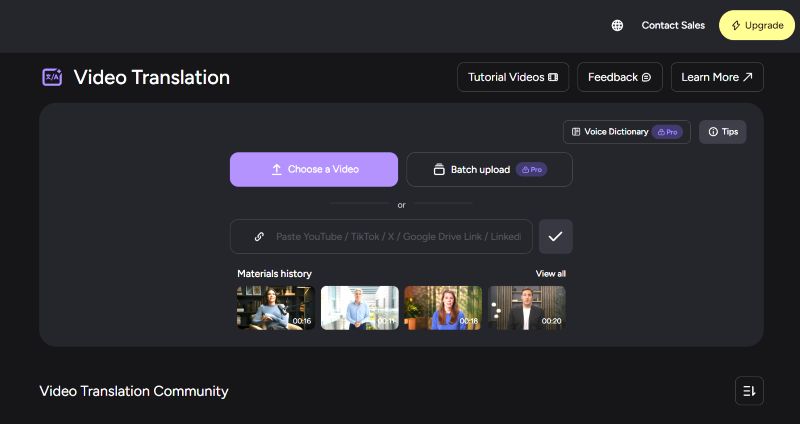
At its core, this feature combines three AI systems: speech recognition, language translation, and AI voice generation. In simple terms, you upload a video. The platform will understand the spoken dialogue, translate it into the selected language, and then generate a new voice track to replace the original audio.
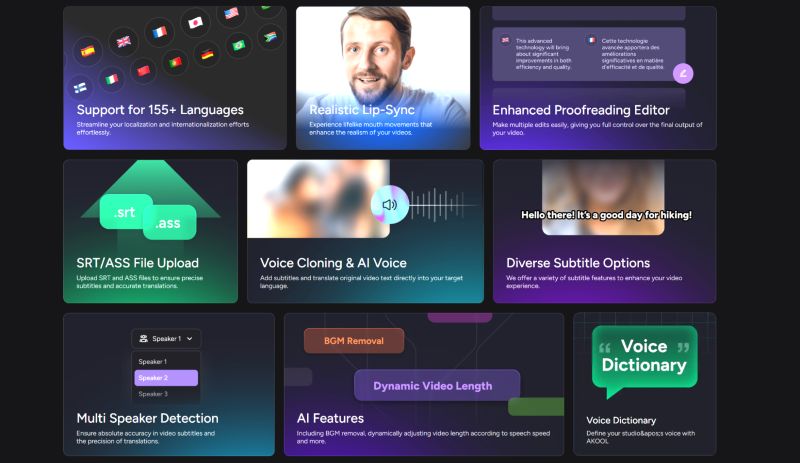
One headline capability of Akool’s Video Translator is the language coverage. The tool supports more than 150 languages. Some other notable features of the Akool video translator include:
- Lip sync technology: Attempt to align translated speech with the speaker’s mouth movement.
- Multi-speaker detection: It can detect different speakers in the video and assign different voices.
- AI voice generation and cloning: Try to match the translated voice track with the original one.
- Subtitle support (SRT/ASS): Upload your own subtitle for accurate translation.
- Voice dictionary: It lets you preserve phrases and brand terminology that you don’t want translated.
- Proofread editor: Allow manual correction of translations before exporting the final video.
Overall, these features give you enough controls to shape the translated video the way you want.
How to Translate Videos to English with Akool
Here’s how to use Akool for a normal translation.
Step 1. Go to the Akool website. Create a free account. Then, click Choose a Video button to upload a file (MP4, MOV, or AVI).
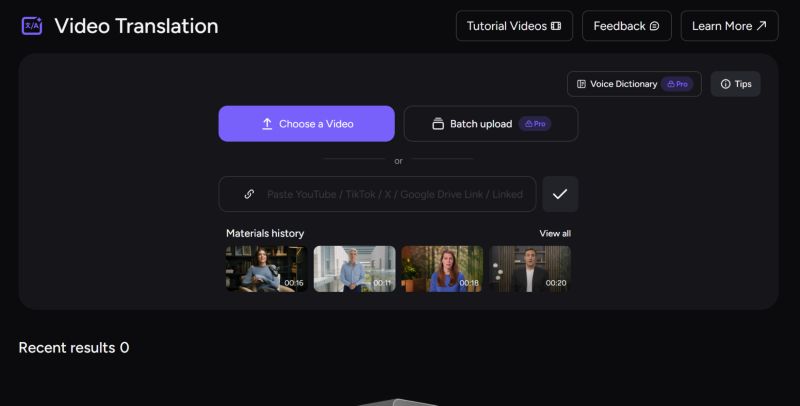
Step 2. Akool will process the file and open the Create translation panel. Here you will see several configuration options.
- You can leave Source Language on Auto Detect.
- The tool can also auto-detect the number of speakers.
- Next, choose the Target language as English.
Step 3. Expand Advanced Settings if you want additional control. Here you can upload an SRT subtitle file, apply a Voice Dictionary, or adjust audio settings such as background music.
Step 4. Once everything looks correct, click Translate. You will see a Generation in progress message while Akool processes the video.
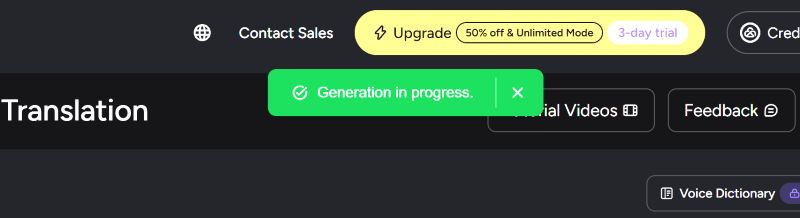
After the translation finishes, the result will appear in the Material history/Recent results section of your dashboard.
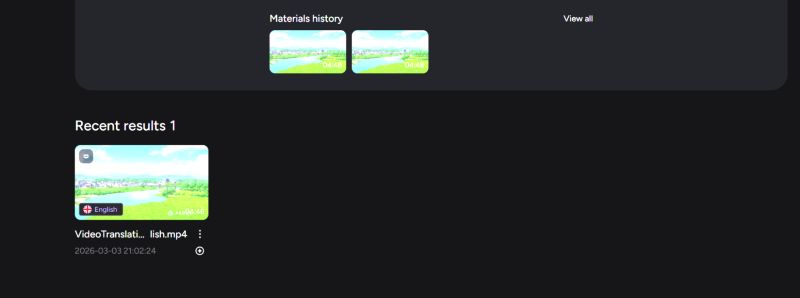
Step 5. Click on the generated video to preview it.
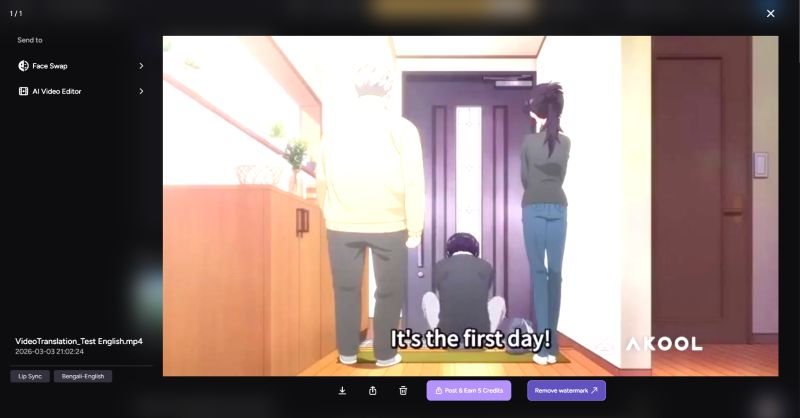
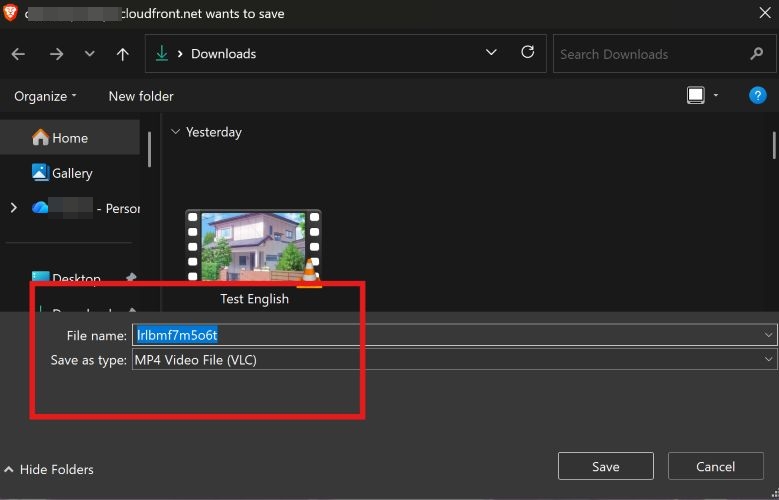
Step 6. Simply press the Download button.

The file will be saved to your computer. You need to rename the video manually, as it removes the original metadata.
Test Experience
Using Akool is fairly simple. You upload a video, select the target language, and click Translate. That’s all it takes if you need a simple dubbed version.
The video upload is also quick. It mostly depends on your internet speed. The translation and rendering stage, however, takes longer. In one of our tests, translating a 4-minute 39-second video at 480p took 2 minutes and 9 seconds on the stopwatch. Other tests showed similar results. So, on average, you can say that one minute of video takes about 30–35 seconds to process when the default settings are left unchanged.
Even on the free plan, Akool exposes several useful options to see how it behaves. You can toggle lip sync, enable dynamic video length, or remove background noise. These settings are enough to understand the kind of output it delivers. Features such as voice dictionary, subtitle uploads, and advanced proofreading tools become available on the Pro and above plans.
Pricing Review: Is Akool Video Translator Free to Use?
Yes, Akool does offer a free plan — Basic plan. But it mainly works as a “playground” for testing the platform.
You do get access to the core translation engine. So you can translate videos into 155+ languages and test its lip-sync technology. However, the limitations are strict: 5-minute video limit and watermark stamped onto the exports.
To unlock useful tools and get better control over translation quality (features like Proofread editor), you will need to upgrade to a paid tier. Here’s a simplified breakdown of Akool’s pricing structure for 2026.
• 5-minute video limit
• Watermark included
• Slower processing
• Access to basic AI models Good for testing the platform, but not practical for real or professional video translations.
1200 credits — US$58/month per seat
2400 credits — US$109/month per seat • 600+ credits included
• 4K resolution
• 30-minute video limit
• Watermark removed
• Access to 22 AI video models
• Faster processing
• Proofread editor and SRT downloads Suitable for individual creators experimenting with AI video generation and translation.
4800 credits — US$229/month
9600 credits — US$449/month • Up to 4K resolution
• 60-minute video limit
• More AI models
• Studio Voice (custom brand terminology — currently implemented as Voice Dictionary)
• Even faster processing
• Collaboration workspace
• API access Designed for small teams using AI tools regularly.
25,000 credits — US$1,000/month
80,000 credits — US$3,000/month • 8K resolution
• 120-minute video support
• Full AI model access
• Studio avatar features
• Dynamic credit billing
• Business templates
• Include everything in Pro Max Suitable for companies producing a large number of AI-generated or translated videos.
• Unlimited customization
• Dedicated infrastructure
• Enterprise-grade security
• Custom AI models Built for large organizations with heavy production workloads.
Note: Akool frequently runs promotions on its website. So you will often see offers like 30% off or even 50% off on certain plans.

Is Akool Cost-effective?
Akool runs on a credit-based system. Every feature consumes credits, and the amount varies depending on what you use.
For example:
- Video translation consumes 1 credit per 5 seconds of video.
- Face Swap uses 10 credits for 10 seconds of video.
- AI image generation consumes 8 credits per image.
- AI avatar video (1080p) uses 5 credits per second.
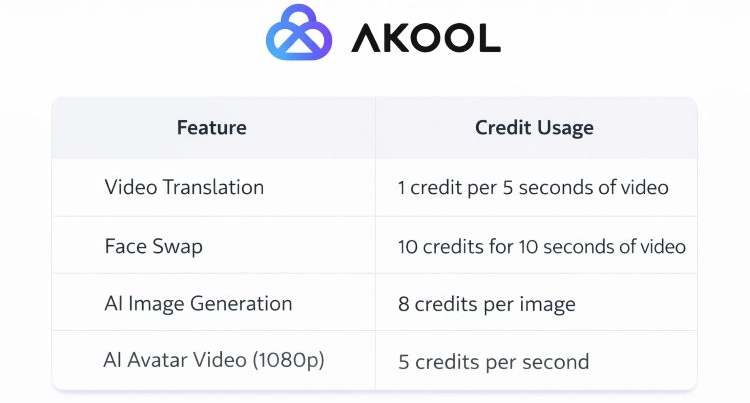
So in practical terms, Akool runs as a credit-driven system. If you convert those credits into real costs, the translation price is US$0.60 per translated minute.
That is relatively low compared with many AI translation tools in the market. The average market rate for AI video translation ranges between US$2 and US$5 per minute.
So from a purely financial perspective, Akool sits on the lower end of AI translation pricing. However, cost alone does not determine value. When you compare the overall capabilities of different platforms, some advanced tools, such as Mediaio Video Translator, offer stronger results despite similar costs.
Security Review: Is Akool Video Translator Safe to Use?
Like with any AI tool, even on Akool you have to upload videos that contain your face, voice, or other biometric elements. So, you naturally worry about how your data is handled.
The good thing is Akool appears to follow standard industry security practices.
According to Akool’s privacy policy:
- Akool also states in its biometric data policy that user data is not used to train its AI models unless you explicitly give consent.
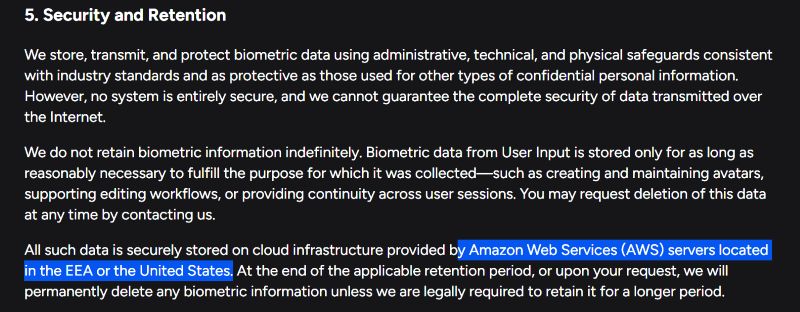
- Your data is kept only for as long as reasonably necessary to complete the requested task.
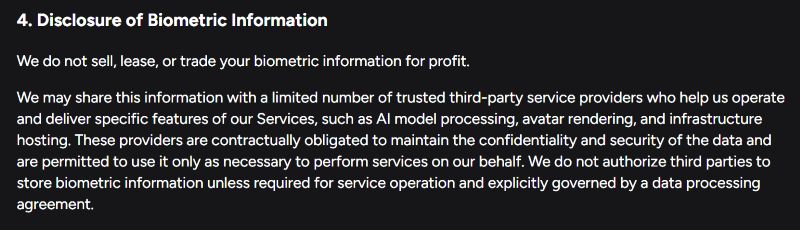
Keep in mind that Akool does share certain data with third-party service providers to run the heavy AI processing and rendering. However, these providers are contractually obligated to use the data only for the specific task requested, such as rendering or processing your video, and not for any unrelated purpose.
On the infrastructure side: Akool relies on AWS (Amazon Web Services) for its cloud systems. And the servers are located in the United States and the European Economic Area (EEA). So, they use modern encryption standards.
So, is Akool safe to use? For most users, yes. Like any cloud-based service, no system can be considered completely risk-free. However, based on its policies and infrastructure, Akool appears to follow standard industry security practices.
Accuracy Review: How Accurate Is Akool Video Translator?
Accuracy is the most important factor when evaluating any video translation tool.
At first glance, almost every AI translator will look impressive. Akool is no different. The translated audio usually sounds natural. The voice output is usually clear, and Akool preserves most background sounds, so the original ambience of the video remains intact. So, it can be difficult to spot problems at first impression.
To properly evaluate a tool like Akool, you will have to dig deeper.
- Do the translated sentences actually sound natural when spoken in sequence?
- Do the lip movements align with the translated speech?
- And how is the experience of other users with Akool?
This section will look at all of those factors.
Test Results
For testing, we translated different types of videos using Akool. Most of them followed the tool’s own recommended conditions — “single speaker and clear audio.”
However, in two of the videos, we intentionally used multiple speakers to see how Akool handles dialogue.
We also compared different content formats, including:
- tutorial-style content with structured narration
- vlog-style videos where the speaker’s face and lip movements are visible
- animated videos with voice-over narration
The goal was to understand how the system behaves across different types. Below are the observations.
Translation Accuracy and Subtitle Editing
To evaluate translation accuracy, we tested the system using a five-minute English video translated into Spanish under the Pro plan. At first glance, the results looked convincing. One of our team members with limited Spanish skills confirmed that most of the content was translated correctly at a line-by-line level. However, once a native speaker reviewed the output carefully, many issues were pointed out to us.
Akool’s system tends to translate each sentence independently. It doesn’t understand the entire conversation as a whole. Because of this, you’ll observe some patterns:
- Some sentences will feel slightly unnatural when played in sequence.
- Emotional tone between lines will not always be preserved.
- A few short dialogue lines will be missed entirely.
- Some translated sentences contain unnecessary filler words.
None of these problems completely breaks the meaning of the video. Still, it is worth pointing out.
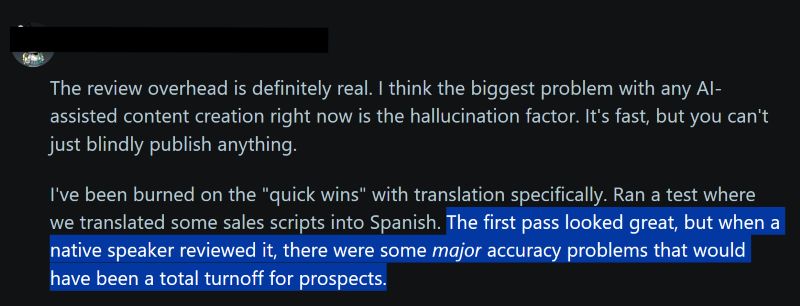
And this is something that many users have pointed out on Reddit and other community forums. One marketer, for example, reported that the translated version initially looked accurate, but once reviewed by a native speaker, there were major accuracy problems.
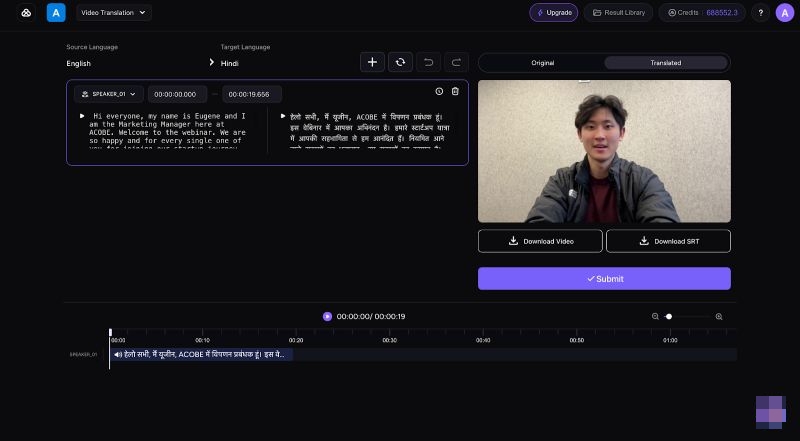
That said, Akool does provide a solution through its Proofread Editor, which is available starting from the Pro plan. Inside the editor, you can:
- Click any subtitle line and edit the translation.
- Review the dialogue alongside the audio track.
- Drag subtitle blocks to adjust timing.
- Reorder lines if needed.
The interface works like a simple subtitle timeline. You press play, listen to the translated line, and make corrections where needed. It is fairly easy to use, but the important point is: you’ll always need a human touch before publishing the translation.
Voice and Speaker Detection
Speaker detection is another area where limitations appear.
Akool clearly states that its system works best with “single speaker, clear audio, and good lighting.” In simple scenes that follow those conditions, the tool often performs well. For example, narration-style videos with a single voice translate somewhat cleanly.
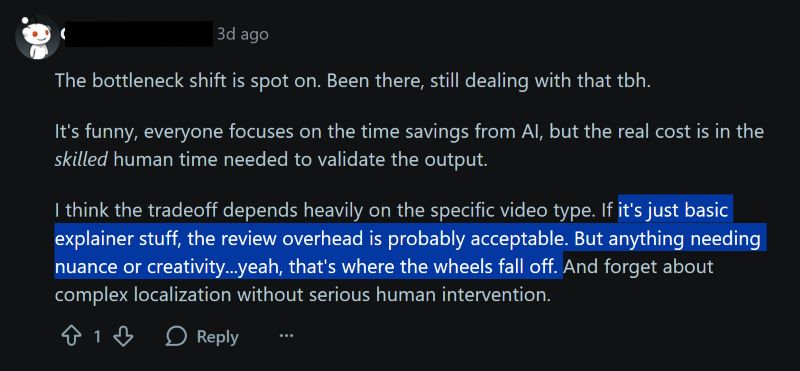
However, once a video contains multiple characters, you’ll notice its shortcomings. In several tests, we found that videos that contained multiple speakers were translated entirely using one narrator-style AI voice.

Because of this behavior, Akool currently suits your workspace if you want to use it for:
- YouTube explainers
- training videos
- tutorials
- educational lectures
- online courses
But you cannot use it for formats like:
- interviews
- podcasts
- panel discussions
- dialogue-heavy scenes
With these types of videos, its speaker detection limitations will become much more obvious.
Lip Sync Performance
The translation settings in Akool include a Lip Sync toggle. In fact, it is one of Akool’s heavily advertised features. This feature lets you align translated speech with mouth movements.
When we turned it on, the first thing we noticed was that the processing became slow. However, without it, the character’s lips didn’t synchronize with the translated voice.
Still, even after using it, the results were not satisfactory. In many cases:
- The translated speech overlapped the original timing.
- The speaker’s mouth movements still followed the original language.
So there will be some visible mismatch between speech and lip movement, even when translating “single speaker, clear audio” content or other “talking-head” videos.
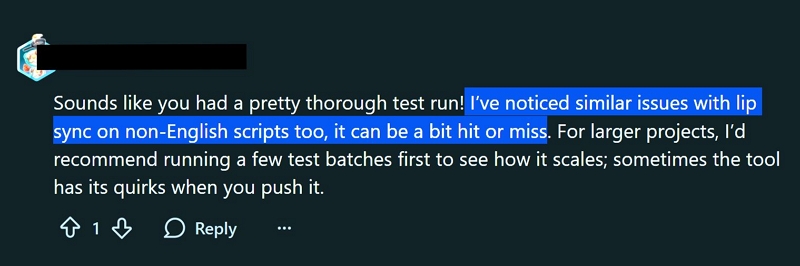
However, the mismatch is less distracting in formats such as:
- screen recordings
- live presentations
- documentary-style footage
- narration over B-roll
In those situations, viewers usually focus on the content. So, you can use Akool’s translated videos for such purposes.
Language Nuances
One interesting thing about Akool is that it handles cultural phrasing well. For example, English speakers will say “uncle” only for a family member. Chinese speakers often use “uncle” for any older man they know. And Akool translated the sentences accordingly. However, attempting to translate jokes or culturally specific expressions can be awkward and misleading.
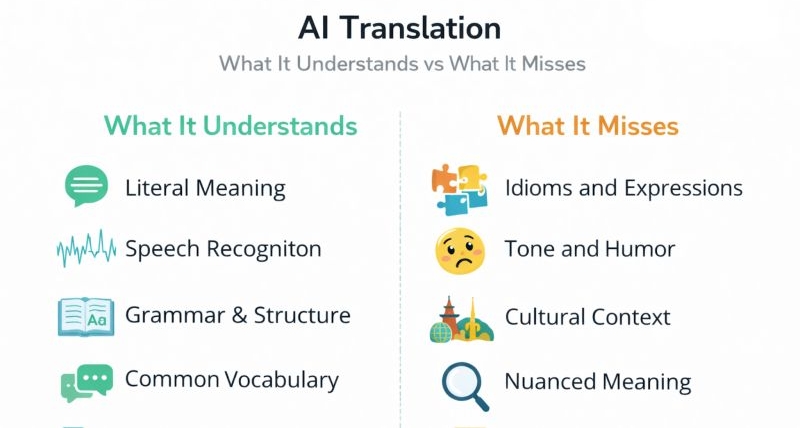
Overall Accuracy Impression
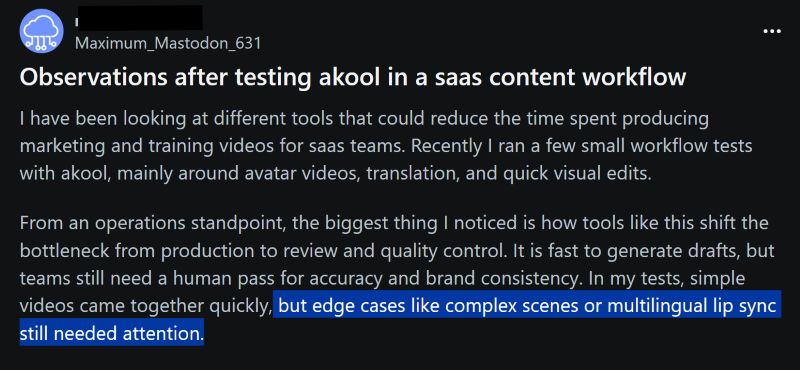
After running multiple tests and reviewing community feedback, one conclusion becomes clear: Akool is relatively fast compared to many other translation tools. Sentence-level translation is generally accurate, and the system does a good job of producing initial draft translations. However, you cannot treat its output as a finished product.
Yes, you can use it for translating structured content such as:
- tutorials
- product demos
- training material
- educational videos
- marketing messages with a single narrator
But always be aware of the hallucination factor. You will still require human review and editing to get a publish-ready video.
What Is the Best Akool Video Translator Alternative
If you need a tool you can rely on consistently, whether for single-speaker clips, multi-speaker scenes, or dialogue-heavy videos, it is worth considering Mediaio Video Translator.
Mediaio is trained on millions of real-world videos such as product demos, tutorials, SEO explainers, training materials, and marketing presentations in multiple languages. Because of that training base, Mediaio handles the subtitles and voice translations with much better precision. In fact, the platform reports up to 99.9% translation accuracy when converting speech across languages. So, there is often no need for heavy manual corrections. That is why many creators, educators, and marketing teams already use it as their go-to option for video localization.
One reason behind that accuracy is how the translation engine works. Like many tools out there, Mediaio does not translate each line independently. Instead, it first analyzes the entire context of the video, and then it generates the translated version. So the tone is consistent even across longer video explanations, tutorials, or product walkthroughs.
How to Translate and Dub a Video with Mediaio
Step 1. Go to https://www.mediaio.net/ and click Try Video Translator. Then, sign in by clicking Get Started in the top-right corner.
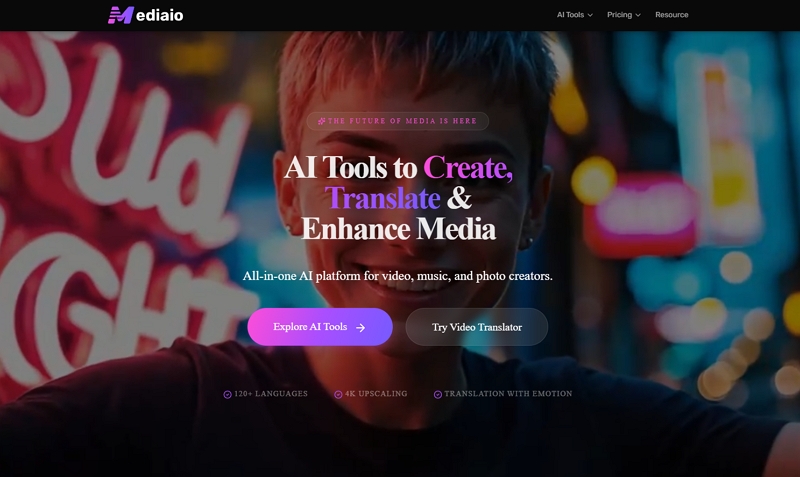
Step 2. Upload the video you want to translate.
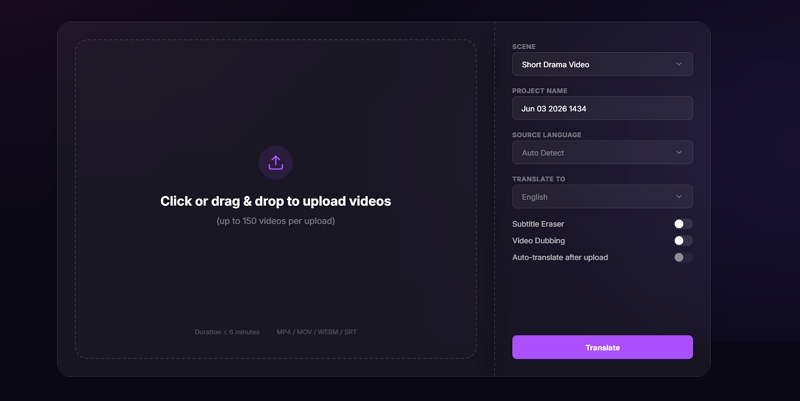
Step 3. Customize the settings in the right pane, such as the scenario (what you use the video for) and the language you want the video audio translated into.
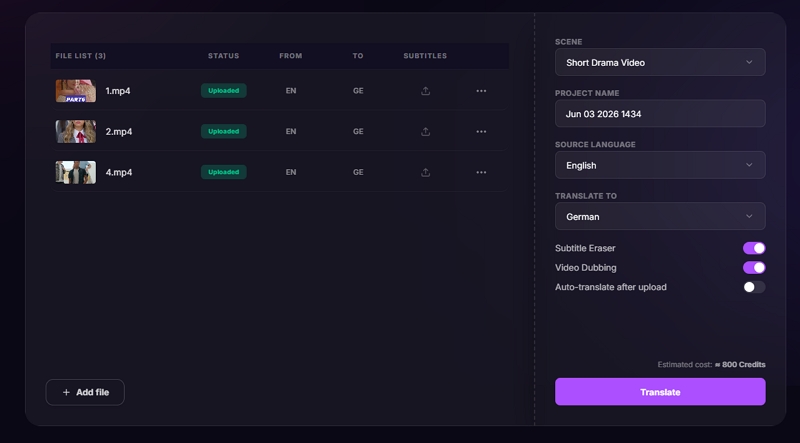
Step 4. Preview the translated video. If needed, you can change the subtitle style, redub the audio or make other adjustments.
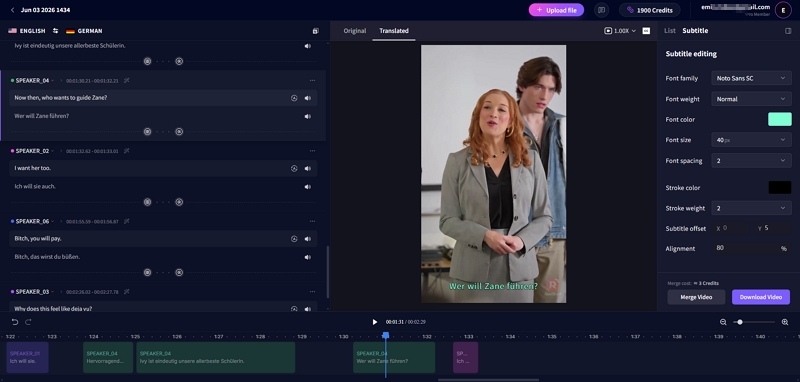
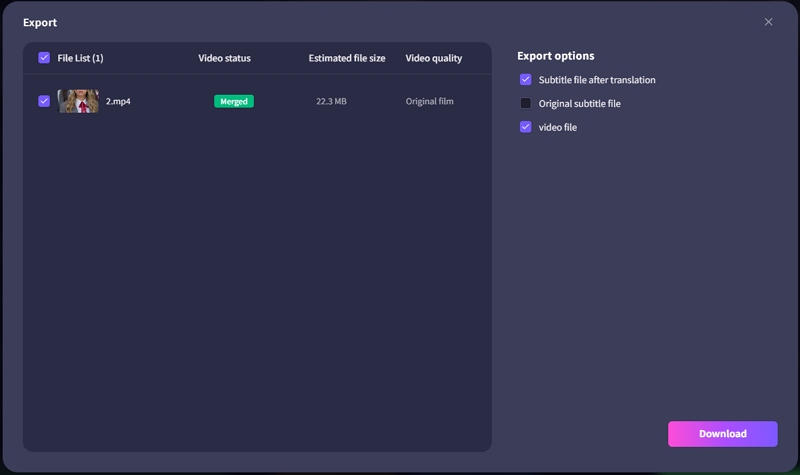
Step 5. Click Merge and then Download. The translated video will be saved instantly.
To Sum Up
Akool Video Translator is a solid entry point into AI video localization. For solo creators, educators, and marketers, it works well for simple single-speaker content. However, you will need human review and corrections before the video looks polished enough to share.
If you want something that can reach up to 99.9% translation accuracy and handle more complex videos, including multi-speaker conversations, then a stronger option is Mediaio Video Translator. It is trained on a large video dataset and built specifically for real-world content. Its voice-cleaning and lip-sync technologies keep translations natural and match the original speech.